Install Motion Path — it’s free → See the product page
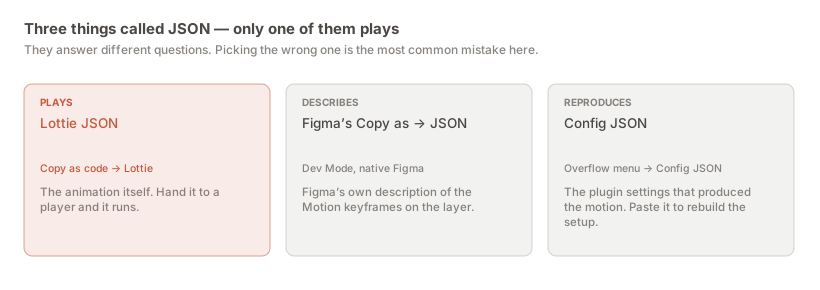
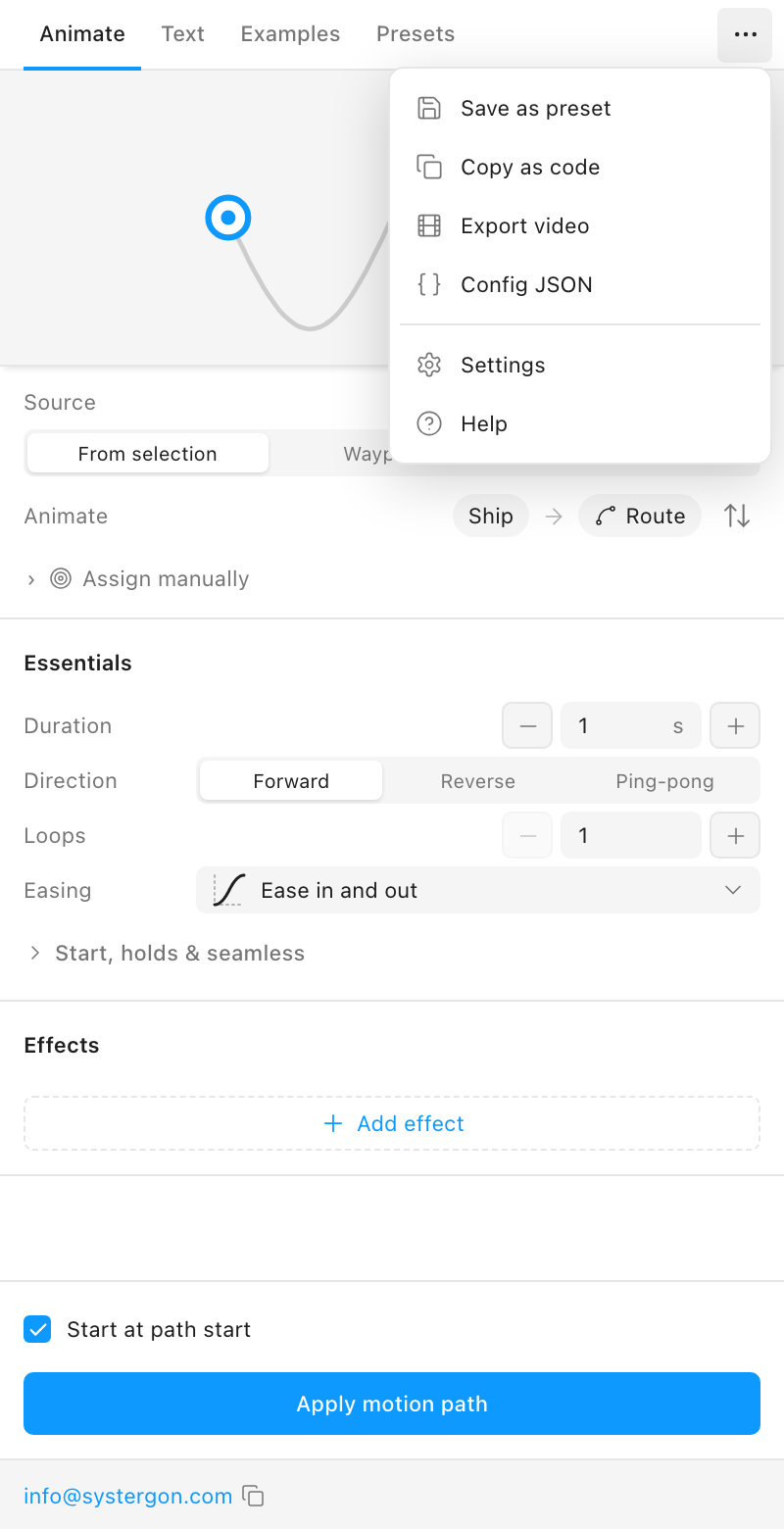
The short answer: three different things around a Figma Motion animation are called JSON, and they are not interchangeable. If you want a file that plays, you want Lottie JSON — Motion Path’s … → Copy as code → Lottie. If you want Figma’s own machine-readable description of the keyframes, you want Copy as → JSON in Figma itself. If you want to reproduce the setup that generated the motion, you want … → Config JSON.
Picking the wrong one is the most common mistake in this area, and it usually surfaces late — when a developer opens the file expecting an animation and finds a settings object, or opens a settings object expecting to play it. This page is here to prevent that, and then to get the right file onto disk and into a codebase.
This is what most people mean when they ask how to get JSON out of a Figma animation, even when they do not know the word Lottie. It is a complete, self-contained animation document: shapes, and the keyframes that move them, in a format iOS, Android, React Native and the web all consume at runtime.
Figma cannot produce it natively. Motion Path can:
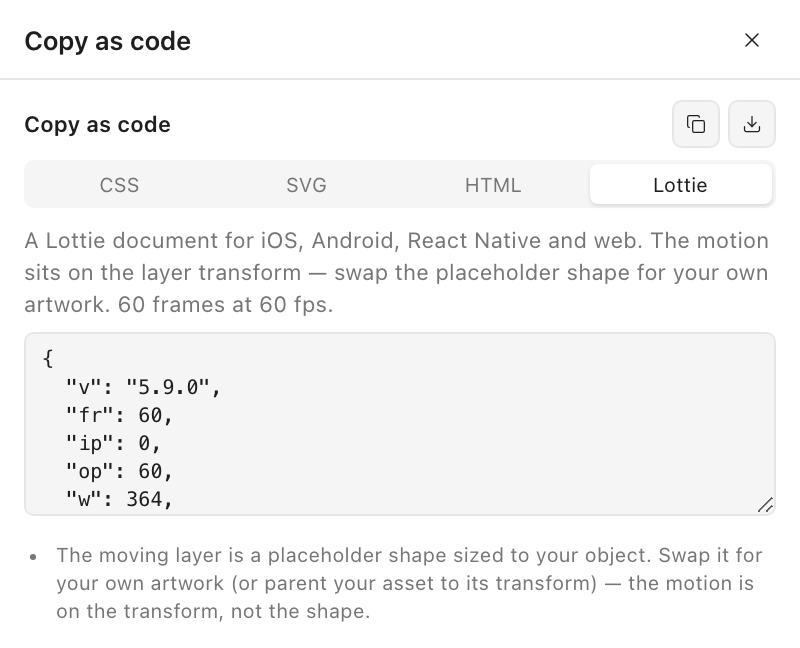
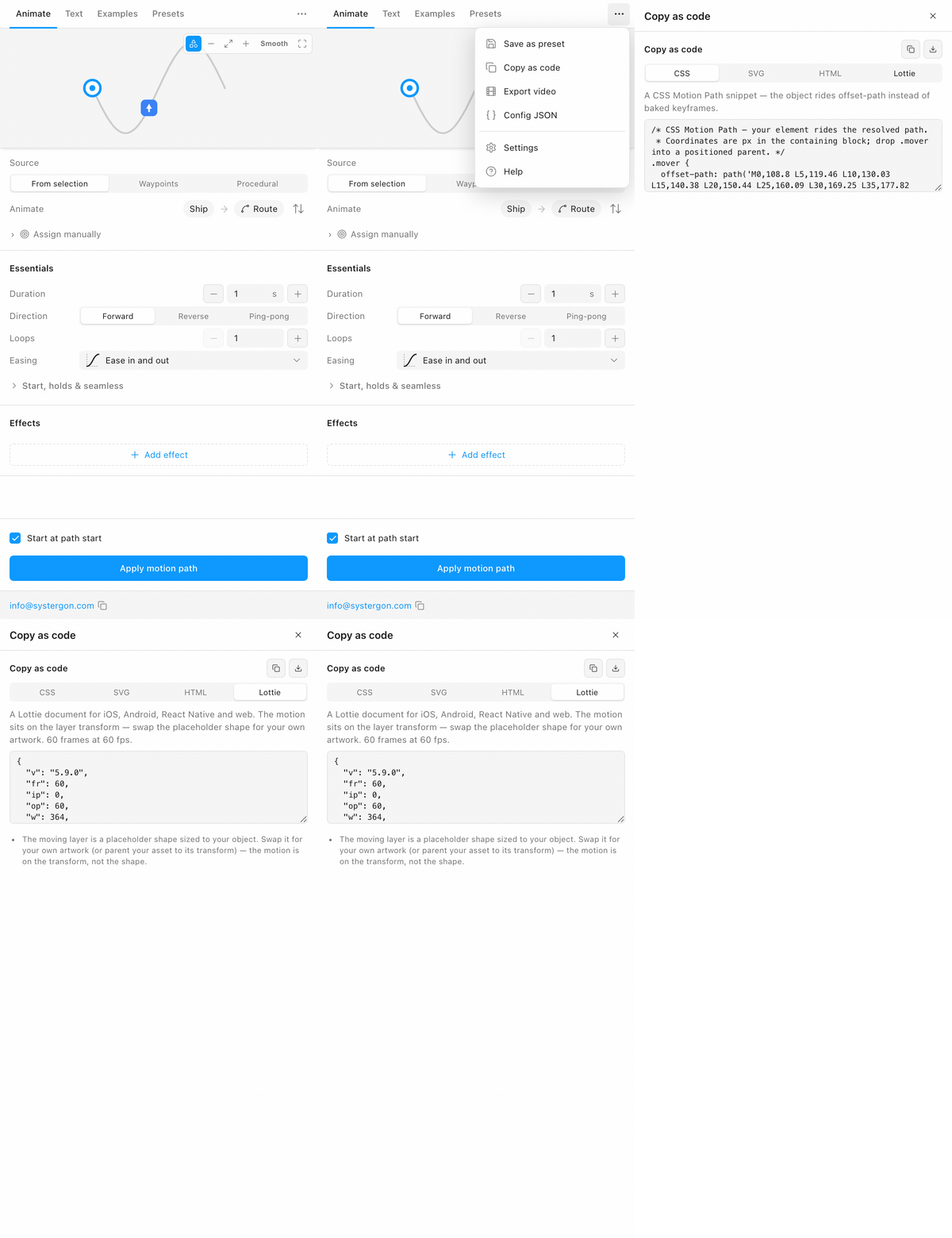
The route is … → Copy as code → Lottie, then the copy or download icon in the panel header. Downloading saves motion-path.json with an application/json MIME type. Here is the whole sequence:
The document itself is small enough to read:
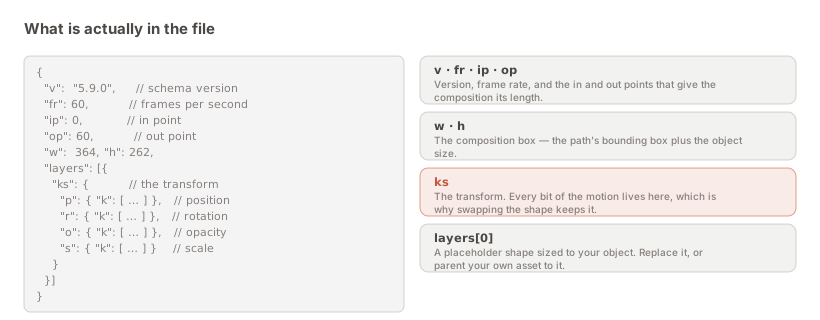
Everything that moves lives on ks, the layer transform. The shape inside is a placeholder sized to your object, so a developer swaps in real artwork — or parents their asset to that transform — and keeps the motion exactly.
The full walkthrough is Figma Motion export to Lottie; the getting-it-into-code side is Figma Motion export JSON.
This one is not in any plugin. It is Figma’s own handoff, and it works on a Motion Path animation for a specific reason worth understanding.
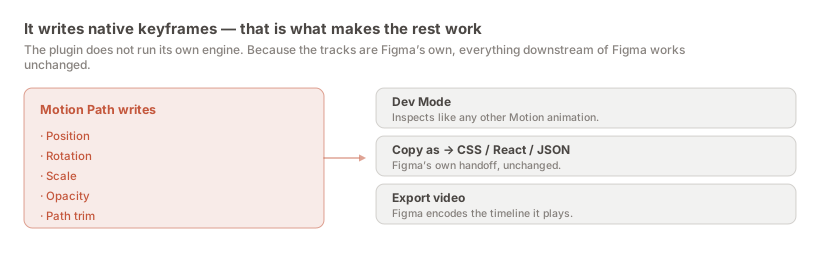
Motion Path does not run its own animation engine. It samples your path and writes native Figma Motion keyframe tracks onto the layer — position, rotation, scale, opacity, path trim. The tracks are Figma’s own, so everything Figma offers for its own animations works on the result. Dev Mode inspects them. Copy as emits CSS, React or JSON from them.
What you get is Figma’s representation of the keyframes on that layer. It is genuinely useful when a developer is already working in Dev Mode and wants Figma’s description rather than a third-party one, or when a tool in your pipeline consumes Figma’s shape. It is not a playable animation, and no Lottie player will read it.
There is also a practical consequence of this design that is easy to miss: because the keyframes are native, nothing about your file depends on the plugin remaining installed. Uninstall it and the animation is still there, still inspectable, still exportable through Figma’s own tools. The plugin is a way of authoring the tracks, not a runtime.
The third is in the same … menu as the exports, which is exactly why it gets confused with them.
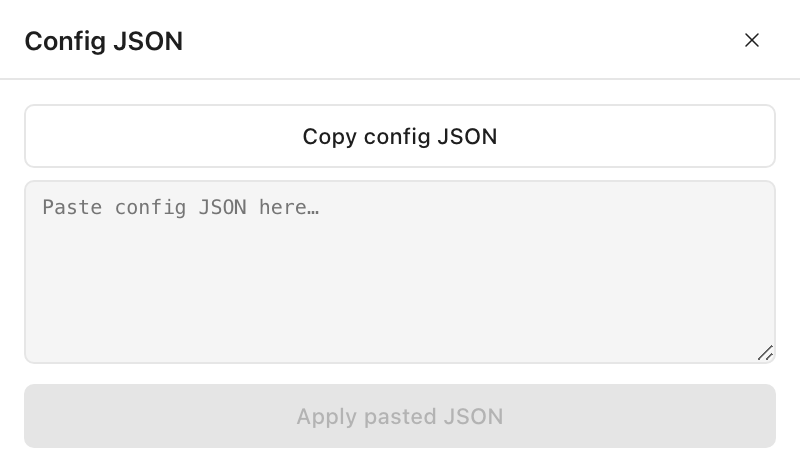
Config JSON contains the settings that produced the motion — duration, direction, loops, easing, the effects you added, the speed profile — serialised into an object. It does not contain the animation. Nothing plays it. It exists so a technique can travel.
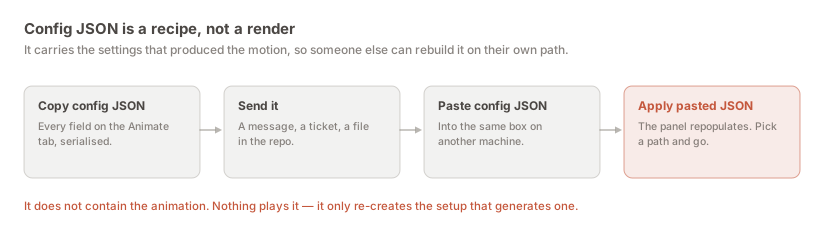
The round trip is the point. Copy the config, send it to a colleague, they paste it into the same box and press Apply pasted JSON. Their panel repopulates with your exact settings, and they pick their own path and go. It is a recipe, transmitted as text.
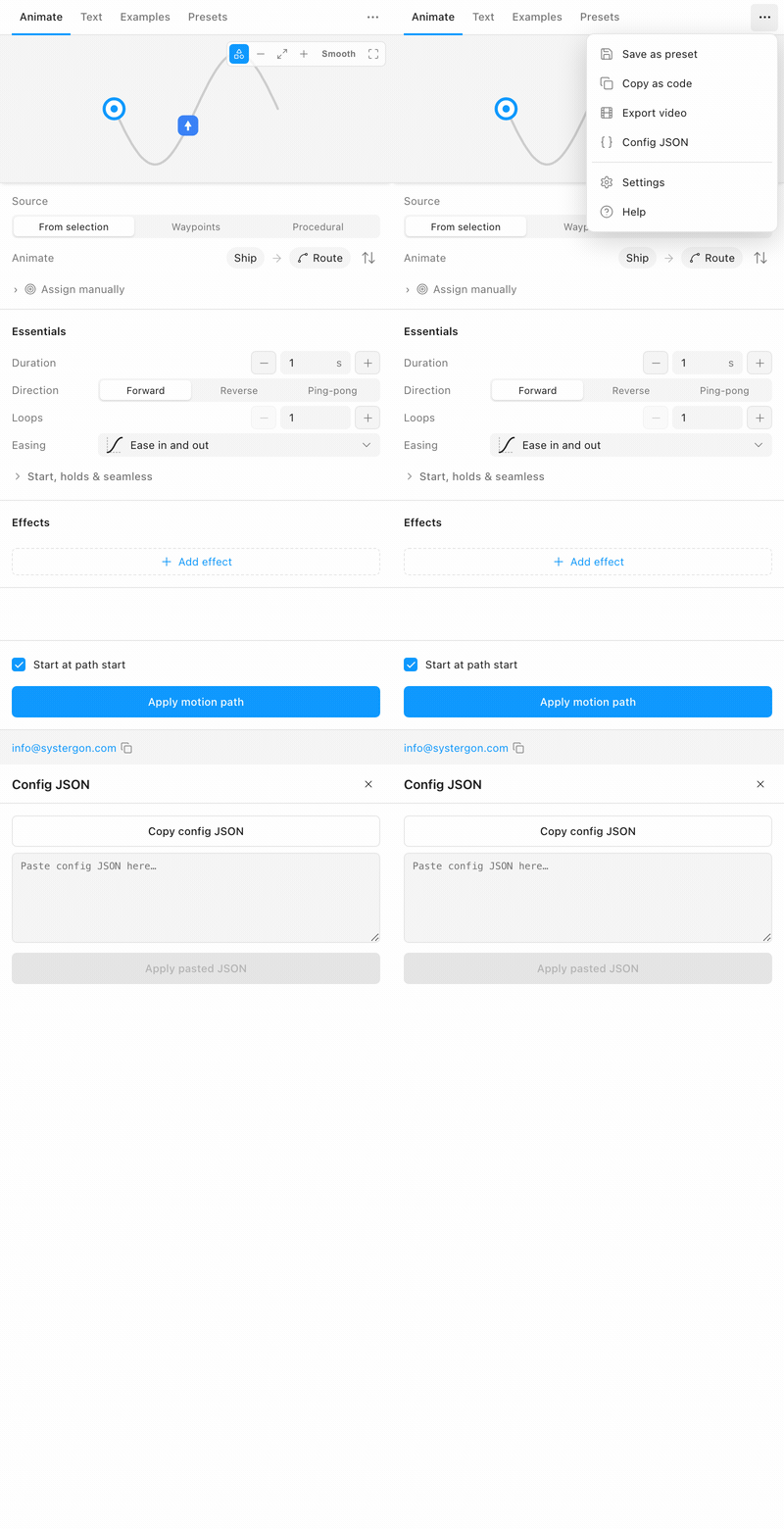
This is genuinely valuable for design-system work — a shared easing and speed profile that everyone applies to their own paths keeps motion consistent across a product in a way that sending finished animations never does. It is worthless as a handoff to engineering, because engineering cannot run it.
If you want to save a setup for yourself rather than send it, use Save as preset in the same menu instead; saving and reusing your own animations covers presets, and syncing presets to GitHub covers sharing them across a team properly.
The decision comes down to one question: what will the other end do with the file?
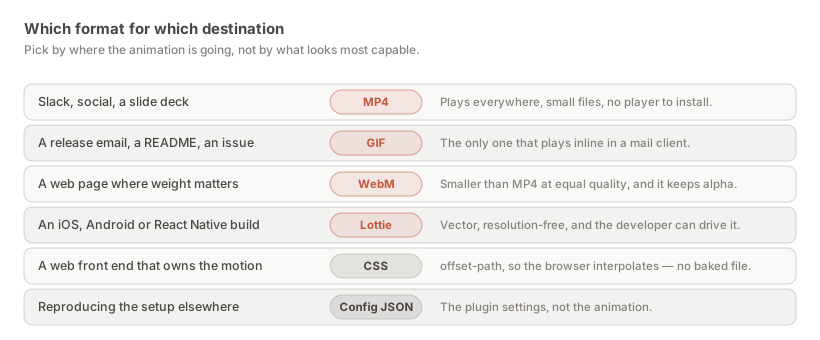
A useful sanity check before you send anything: open the file and look at the first few keys. A Lottie starts with "v", "fr", "ip", "op", "w", "h" and a "layers" array. A config does not. If you were expecting an animation and there is no layers key, you copied the wrong thing.
Open the position track and there will be far more keyframes than you placed on the canvas. People routinely read that as a bug, or as the export being wasteful, and it is neither.
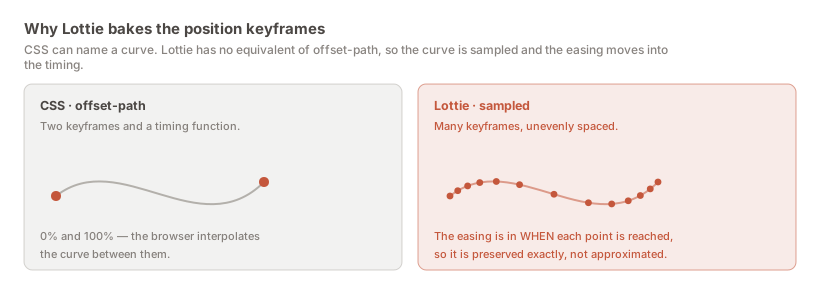
Lottie has no equivalent of CSS’s offset-path. There is no way, in the format, to say “follow this curve with this easing” — so a curve cannot be two keyframes and a timing function. It has to be described point by point.
The easing then goes into when each of those points is reached rather than into a timing function, which is why the spacing is uneven. The result is better than a lossy conversion, not worse: your easing is preserved exactly rather than approximated by whichever cubic-bézier came closest. It is the same trade the plugin makes when baking to the Figma canvas, and the fidelity section of the Lottie guide goes into it properly.
A file of a few hundred kilobytes is normal and compresses extremely well over the wire, because it is repetitive numeric text. It is still, in almost every case, smaller than the MP4 of the same animation — and unlike the MP4 it is resolution-free.
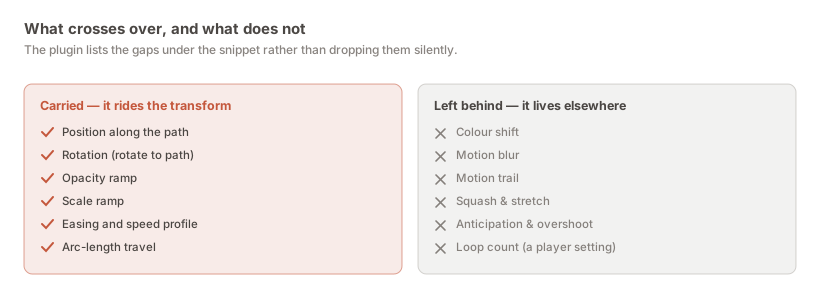
The rule is simple enough to hold in your head: anything riding the layer transform is in the JSON, and anything living in the artwork or on the canvas is not. Position, rotation, scale, opacity and the timing that drives them all cross over. Colour shift, motion blur, motion trail, squash & stretch and anticipation do not, because they key the fill, add ghost copies, or extend the motion past the path ends — none of which is a transform.
The plugin prints these as notes under the snippet rather than dropping them silently, which is the behaviour you want. An effect that quietly vanished is discovered on a device weeks later; an effect named at export time is a decision you make now.
All three describe motion. None of them describe the interface the motion happens in, and this trips up teams who reach for a JSON export expecting a complete handoff.
No component variants. No auto-layout rules. No text styles or colour tokens. No prototype interactions outside the timeline. A Lottie carries a placeholder shape rather than your artwork, deliberately — and even Figma’s own JSON describes keyframes on a layer, not the design system the layer belongs to.
If what you actually need handed over is the interface, none of this is the tool; Dev Mode is. These exports are for the movement.
The export writes Lottie schema version 5.9.0, which is the version every current player consumes without a shim. That choice is conservative on purpose. Lottie’s newer features are unevenly implemented across the four official players, and a document that renders beautifully in lottie-web and subtly wrongly on Android is worse than one that renders identically everywhere.
Because the animation rides the layer transform and nothing more exotic, it sits well inside what 5.x guarantees. That is a large part of why the placeholder-shape design exists: keeping the moving parts to position, rotation, scale and opacity keeps the file inside the intersection of what every player agrees on, rather than the union of what each supports individually.
The practical implication for you is that you should not need to ask a developer which Lottie version their player is on. If they are on a maintained release of any of the four, it will read the file.
Assuming you want the playable one. First, apply the motion — the preview in the panel writes nothing to the canvas, and the exports read the applied timeline. If you skip this the export has nothing to describe.
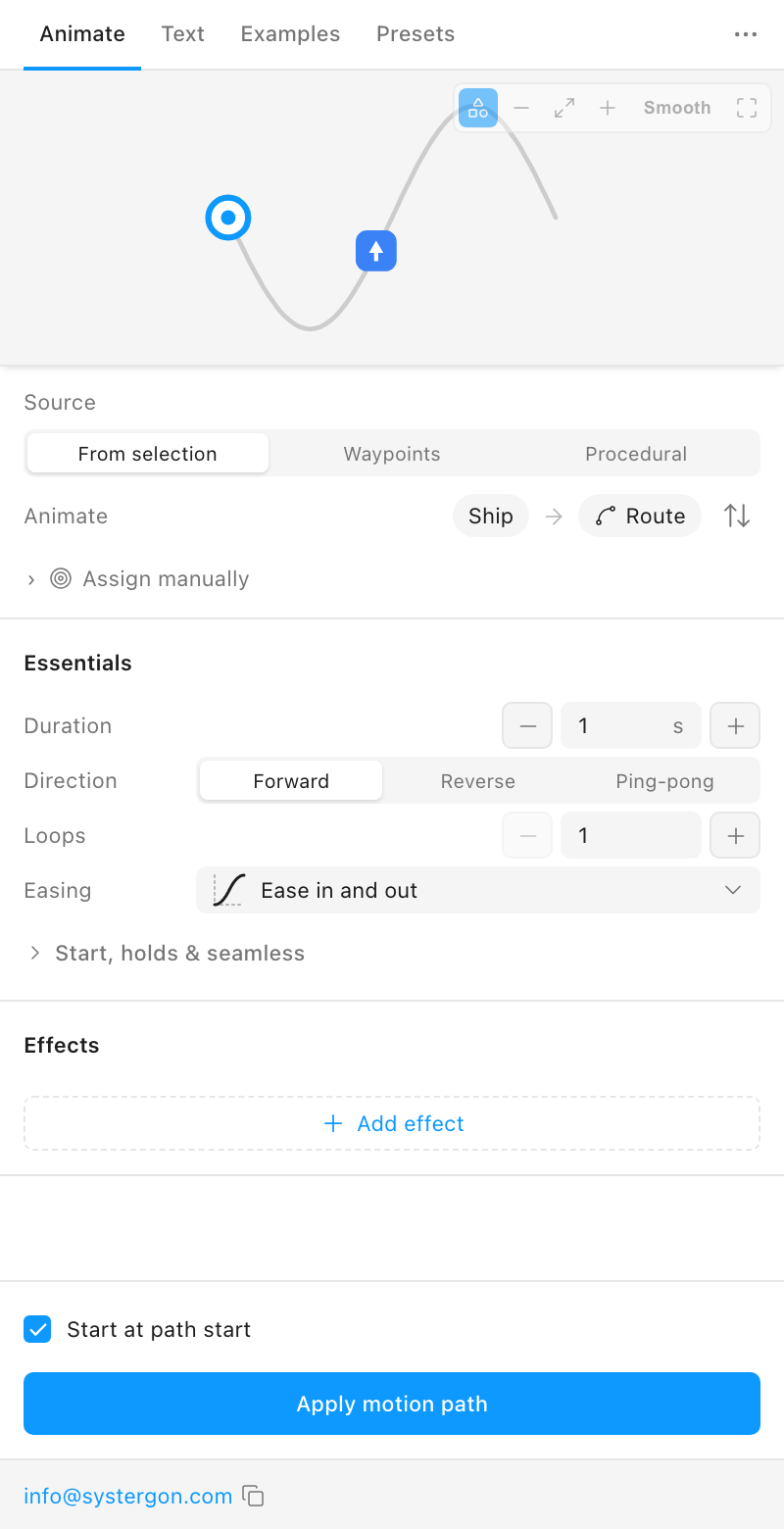
Then Copy as code from the … menu, and the Lottie tab.
Two icon buttons sit in the header of the Copy as code panel, and they act on whichever tab is selected. The content is byte-identical. The only difference is where it lands, and that difference matters more than it sounds.
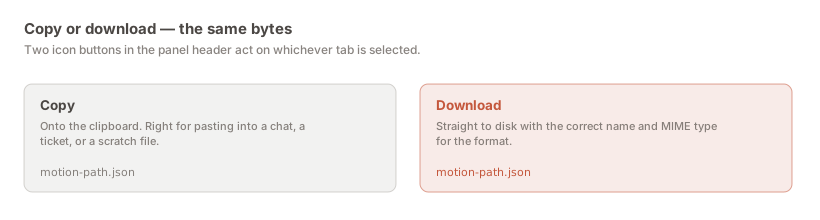
Copy is right when the JSON is going into a message, a ticket, or a scratch file. Download is right when the file is going into a repository: it arrives as motion-path.json with an application/json MIME type, whereas a clipboard paste into an editor gets whatever name and extension you happen to give it — and a .txt in an assets folder is a small bug waiting to happen at bundle time.
Rename it to something meaningful on the way in — checkout-success.json rather than motion-path.json — because every export has the same default name and you will have several before long.
A JSON that parses is not a JSON that plays correctly, and the gap between the two is where a designer’s credibility goes. The check is cheap: load the file into a Lottie player and watch it beside the plugin’s own preview.
That is how the export itself was validated rather than assumed. Loaded into lottie-web, an object on a circular path holds a constant radius from the centre to within a fraction of a pixel; the facing sweeps a clean 360°; and the frame spacing is visibly uneven under an ease — which is what “the easing lives in the timing” should look like when you inspect it.
Three things are worth eyeballing on your own file. Does it start and end where you expect — not one frame short, not holding a beat you did not intend? Does the speed look constant where you drew a constant path? And does the composition box frame the motion rather than clipping it at the edges?
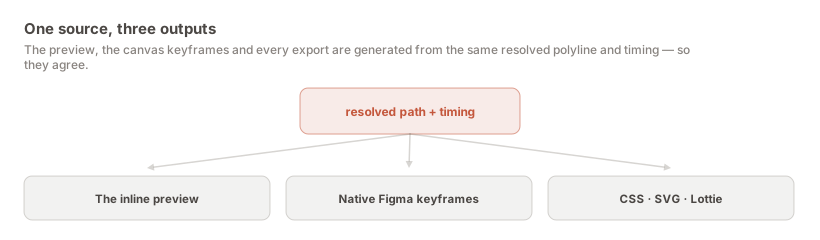
The comparison is fair because the preview and the export are not two implementations of the same idea — the preview, the canvas keyframes and every export come from one resolved polyline and one timing model.
The integration is short on every platform, and it is the same file in each case.
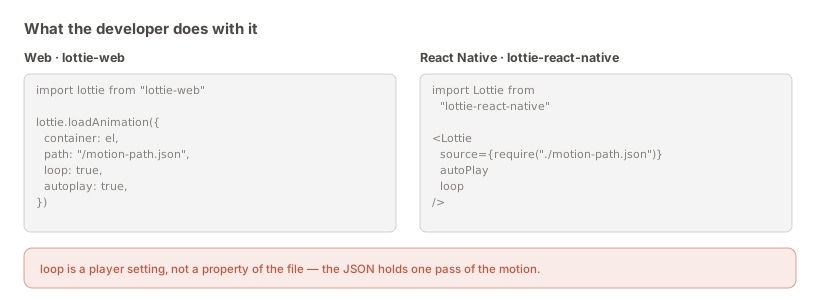
Web. Install lottie-web, then lottie.loadAnimation({ container, path: '/motion-path.json', loop: true, autoplay: true }). Serve the JSON as a static asset; it is plain text and caches like any other.
React Native. Install lottie-react-native, then <Lottie source={require('./motion-path.json')} autoPlay loop />. The require bundles it, so there is no fetch to fail.
iOS. Add the JSON to the app bundle and load it with LottieAnimationView(name: "motion-path"). Playback, speed and loop mode are properties on the view.
Android. Put the JSON in src/main/assets and point a LottieAnimationView at it with app:lottie_fileName, or load it in code. Same file, same result.
These are the questions that come back if you do not say them up front, and each costs a round trip.
The shape is a placeholder. The moving layer is a rectangle sized to your object, not your artwork. Swap it for the real asset, or parent the asset to that transform, and every bit of the motion carries over. Deliberate rather than a limitation — it is what lets the same motion drive different artwork.
Looping is a player setting. The JSON holds one clean pass. loop: true in lottie-web, the loop prop in React Native, loopMode on iOS. If your Figma animation repeated the traversal, the export notes say so explicitly.
The notes list what is missing. Forward them with the file. They name any effect Lottie cannot carry, so nothing is discovered late. The Lottie guide covers that conversation in full.
A small question that causes a surprising amount of friction, because designers hand over a file and engineers have to decide what it is before they can put it anywhere.
A Lottie is a static asset, not source code. On the web it belongs wherever images live and gets served with the same caching rules; it is plain text, so it gzips well and a CDN handles it without special treatment. In a React Native app it is usually bundled through require so there is no network fetch to fail on a cold start. On iOS it goes in the app bundle; on Android, in src/main/assets.
The decision that actually matters is bundle versus fetch. Bundling means the animation is guaranteed present and costs app size; fetching means it can be updated without a release and can fail. For a small interface animation — a success tick, a loading state — bundling is nearly always right, because a missing animation at exactly the moment the user needs feedback is worse than a few kilobytes.
Nothing here creates a live link. The JSON is a snapshot taken when you pressed the button, and when the design changes the file does not. That is obvious written down and still surprises teams three sprints later, when the shipped animation is quietly not the one in the Figma file.
The habit that makes it survivable is to re-export rather than hand-edit. A JSON a developer has tweaked by hand cannot be regenerated without losing the tweak, and the moment that happens the Figma file has stopped being the source of truth — nobody announces it, it just becomes true. Re-exporting is cheap; that is much of why the plugin writes native Figma keyframes instead of running its own engine.
If a value genuinely needs to differ at runtime — speed, or where the animation pauses — that belongs in the player rather than in the file. Every Lottie player exposes speed, direction and the ability to play a frame range, so a developer can hold the animation at 40% while a form validates without touching the JSON. That is a capability a video does not have, and it is worth pointing out when someone asks why you did not just send an MP4.
One thing worth agreeing early: who owns the file after handoff. If the answer is “the designer, and it is regenerated from Figma”, nobody should be editing it in the repository and it is worth saying so in the pull request. If the answer is “engineering owns it now”, that is legitimate too — but it means the Figma file is a reference rather than a source, and everyone should know that before the first divergence rather than after it.
Assuming you wanted the playable one, this is the shape of the integration on each platform:
Short on every platform, and the file is the same in each case — which is most of the argument for Lottie over per-platform animation code.
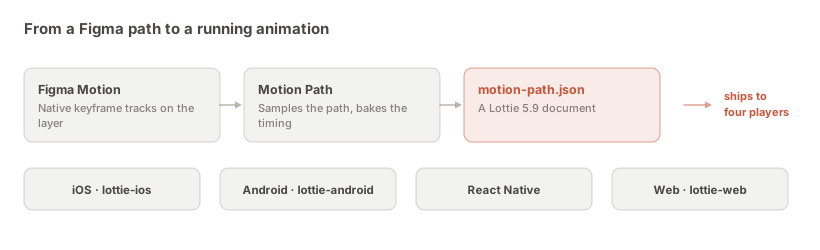
One caveat to pass on with the file: looping is a player setting, not a property of the JSON. The document holds one clean pass of the motion. If your Figma animation repeated the traversal, the export notes will say so.
For a JSON that plays: apply the motion, then … → Copy as code → Lottie in Motion Path, and copy or download it. For Figma’s own description of the keyframes, use Figma’s native Copy as → JSON. For the plugin settings, use … → Config JSON.
Lottie is a specific JSON schema for vector animation — so every Lottie file is JSON, but very little JSON is Lottie. A Lottie document begins with keys like v, fr, ip, op and a layers array. If those are missing, a Lottie player will not read it.
Figma’s Copy as → JSON gives you Figma’s representation of the Motion keyframes, which is real and useful but is not a playable animation document. For Lottie you need a plugin, because Figma does not emit that format.
Moving a setup between files or people. It holds the plugin settings that generated the motion — duration, direction, loops, easing, effects — so someone can paste it, press Apply pasted JSON, and rebuild the same recipe on their own path. It is not an animation and nothing plays it.
Lottie, in nearly every case — it is the one they can ship. Send an MP4 alongside it so they can see the intended result without opening a player.
motion-path.json, saved by your browser with an application/json MIME type, in whatever download location your browser uses. The copy button puts identical content on the clipboard.
No. The Lottie carries a placeholder shape sized to your object, because the motion lives on the transform rather than in the shape. A developer replaces the placeholder, or parents real artwork to its transform, and the motion is untouched.
No. The plugin writes native Figma Motion keyframes, so the animation belongs to your file rather than to the plugin. You would lose the ability to author new paths, not the work already applied.
motion-path.json, with an application/json MIME type, saved to your browser’s download location. Rename it to something meaningful before it enters a repository — every export has the same default name.
Install lottie-web and call lottie.loadAnimation({ container, path: '/motion-path.json', loop: true, autoplay: true }). Serve the JSON as a static asset.
Yes, in the player. The file holds one pass of the motion; loop: true in lottie-web, the loop prop in React Native, loopMode on iOS, and the equivalent on Android.
You can, but it is usually a mistake on a file that will be re-exported: a hand-edited Lottie cannot be regenerated without losing the edit, which quietly makes the Figma file stop being the source of truth. Change it in Figma and export again instead.
Install Motion Path — it’s free → Browse 300+ animation examples