Install Motion Path — it’s free → See the product page
The short answer: Figma Motion has no Lottie export of its own. Install Motion Path, animate your layer, then open the … menu in the plugin titlebar and choose Copy as code → Lottie. You get a complete Lottie 5.9 document that you can copy to the clipboard or download as motion-path.json, ready for lottie-ios, lottie-android, lottie-react-native or lottie-web. The whole thing takes about fifteen seconds once the motion is applied.
The rest of this page is everything behind those fifteen seconds — what Lottie is and why app teams ask for it, the panel field by field, what actually lands in the file, why the position track has far more keyframes than you drew, what Lottie cannot carry, and how to hand the result to an engineer so it ships instead of being re-made.
It is a text file. That is the first surprising thing about it, and most of what follows comes from it.
Where an MP4 is a sequence of encoded pictures, a Lottie is a set of instructions: here is a shape, here is where it is at frame 0, here is where it is at frame 60, and here is how it gets between them. A player reads the instructions and draws the result at runtime.
The format came out of Airbnb, which built players for iOS, Android and the web so that one animation file could run everywhere rather than being rebuilt three times. Those players — lottie-ios, lottie-android, lottie-web, and lottie-react-native alongside them — are why the format won: the file is genuinely portable, not portable in principle.
Three properties explain why product teams standardise on it, and each is something a video cannot do.
It is vector, so it has no resolution. The same file is crisp on a small phone and a 5K display. No 2× and 3× variants, no re-export when a new device size appears.
It is small. Repetitive numeric text compresses extremely well, and a Lottie is usually lighter than the MP4 of the same animation — frequently much lighter, and for a mobile app that ships the file in its bundle, that is a real number someone is tracking.
It is drivable. This is the one that changes what motion can be. A player can pause a Lottie at 40% while a form validates, run it in reverse when an action is undone, speed it up on a fast connection, or play only a frame range. An animation that responds to application state is interface; one that plays start to finish regardless is decoration. Lottie is what lets the first kind exist.
Concrete cases help, because “we should use Lottie” in the abstract rarely survives a planning conversation.
The most common is feedback on a completed action — a success tick, a saved state, a sent confirmation. Short, everywhere in a product, and they benefit from being drivable: the animation plays when the request succeeds, not on a timer.
Second is loading and progress, where drivability matters even more. A Lottie can be held at a frame while work is in flight and released when it completes — the difference between an animation that reflects what the system is doing and one that merely occupies the user.
Third is onboarding and empty states, where the argument is weight and crispness. These tend to be large on screen, which is exactly where a video’s resolution shows and a vector’s does not.
Where it is used least is anything long, photographic, or full-bleed. Lottie is a vector format; it has no advantage over video for a filmed clip or an illustration with hundreds of shapes, and at some point the file stops being small.
Figma’s native Motion panel is genuinely good at handing work over. Select an animated layer, open Copy as, and you can take CSS, React or JSON straight out of the file. Dev Mode inspects the keyframes. None of that is missing.
What is missing is the one format mobile and web product teams have standardised on. Figma’s Copy as does not produce Lottie, so the moment your motion is going into an app rather than onto a web page, the native handoff stops short of the format your engineers actually consume — and the fallback is a screen recording plus a written spec, which is where motion designs go to be renegotiated.
There is a second gap, in the authoring rather than the export. Open Figma’s Motion → Animations panel and you will see Position, Scale, Rotation, Size, Opacity… and then Path, greyed out and unavailable. Animating a layer along a curve is not something native Motion can do yet.
Motion Path fills both gaps, and it fills the first because of how it fills the second. Here is every route out of its panel, so you can see where Lottie sits among them:
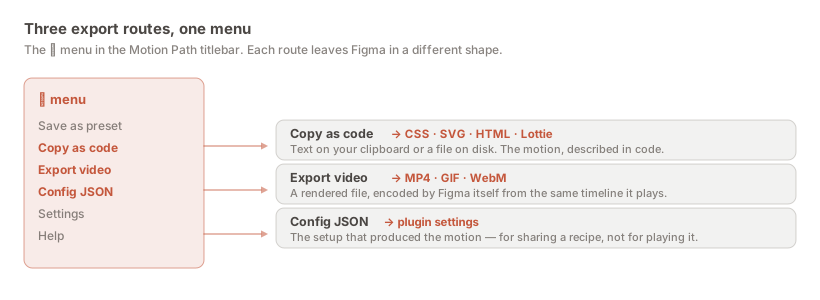
Three of the six menu items are exports. Copy as code is the one that produces Lottie. Export video is covered in the video export guide, and Config JSON is a different thing entirely — if you arrived here because you searched for JSON, read which of the three JSONs you actually want before going further.
This is the step people skip, and it is the reason an export comes back empty. The plugin previews your motion live in the panel before anything is written to the canvas. That preview is not an animation yet. Press Apply motion path and the plugin writes real, native Figma Motion keyframe tracks — position, rotation, scale, opacity and path trim — onto your layer.
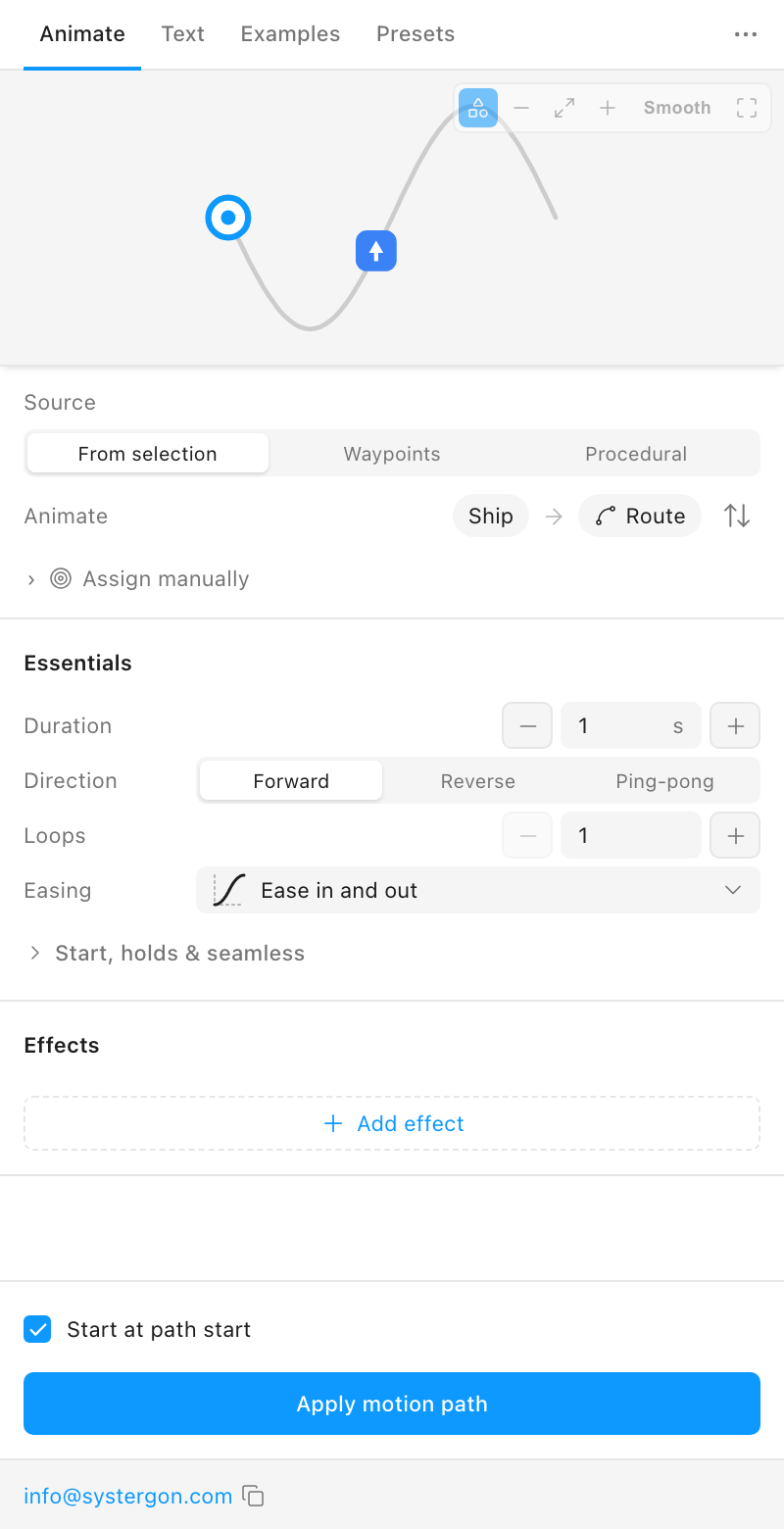
Everything downstream depends on this. The plugin does not run its own animation engine — it writes Figma’s own tracks, which is precisely why Dev Mode, Copy as, video export and the Lottie export all work on the result:
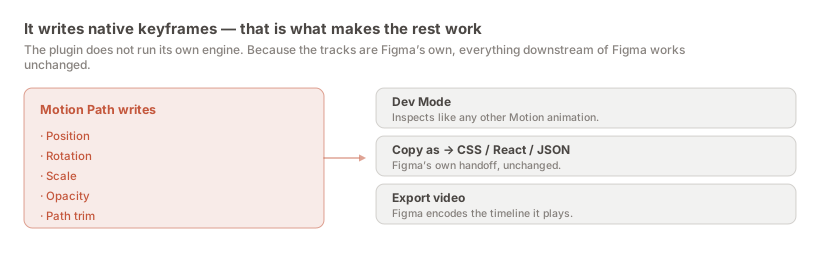
Two further consequences are worth knowing. Your file does not depend on the plugin — uninstall it and the animation is still there, still native, still exportable. And there is nothing to migrate if Figma ships path animation itself, because the data is already Figma’s.
If you have not animated anything yet, the how to animate a layer along a path article walks through it, and the examples gallery has 300-odd ready-made recipes you can apply and then export immediately.
Click the … button at the right of the plugin titlebar. Six items appear.
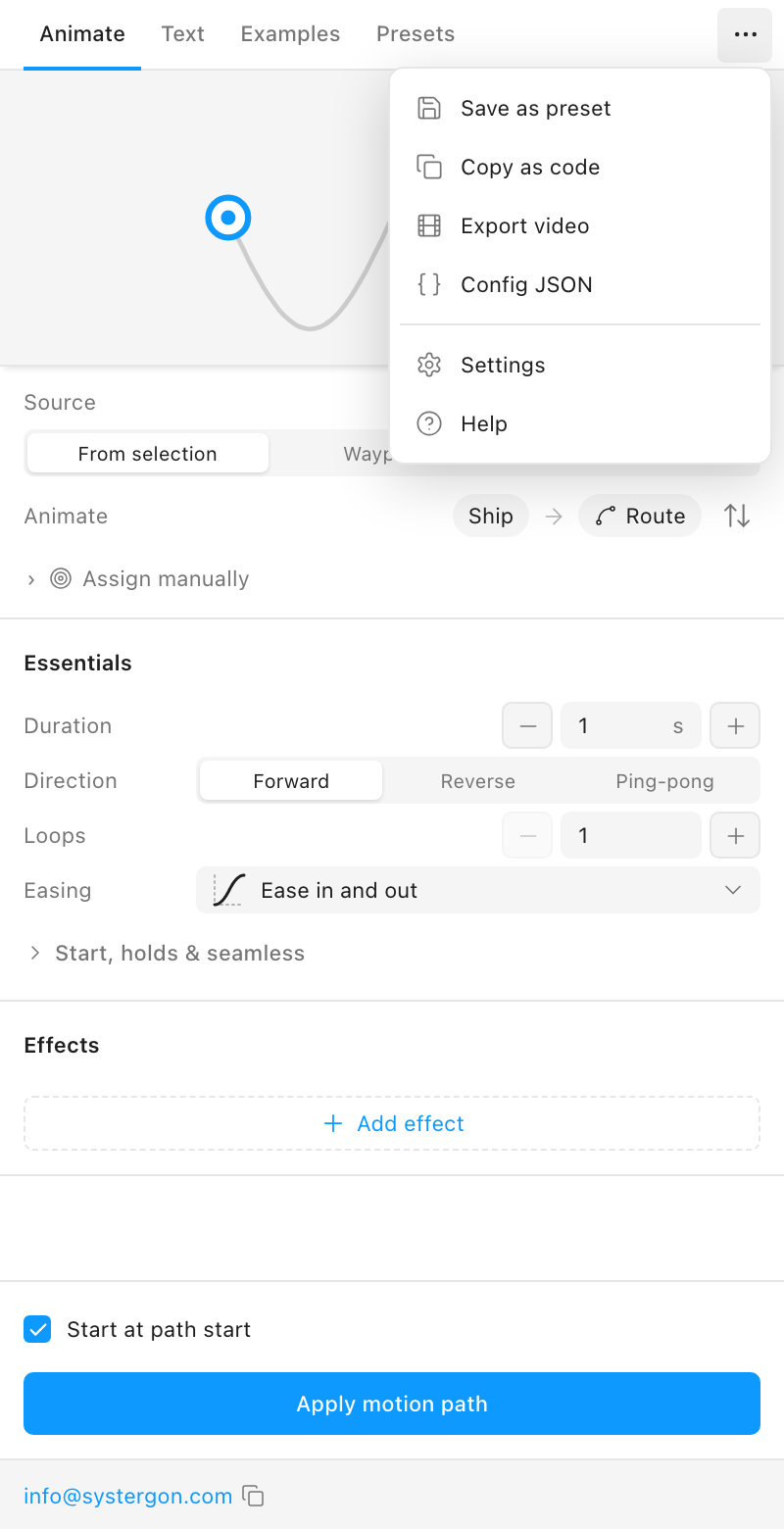
You want Copy as code. It is the second item, above Export video.
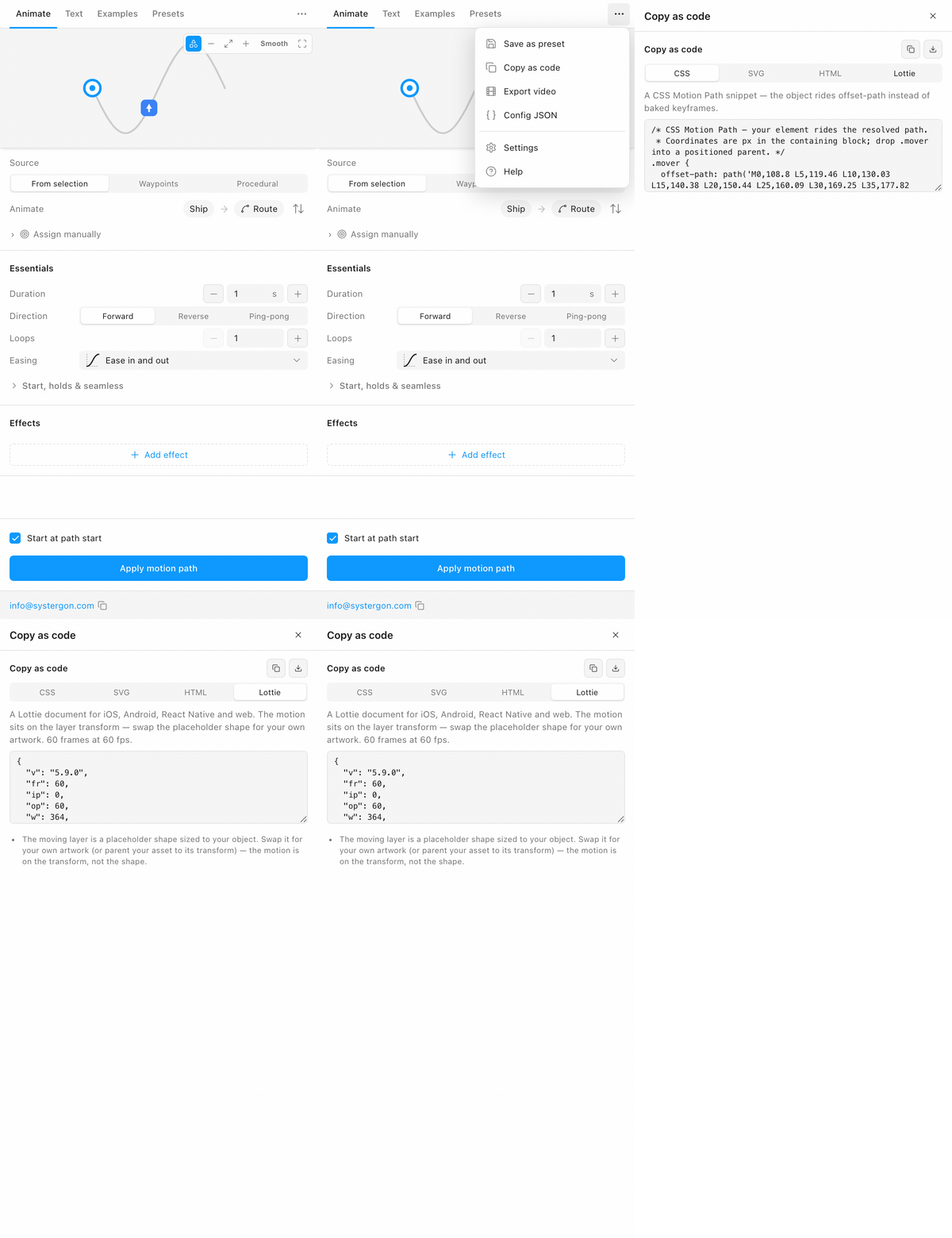
The panel opens on CSS, because CSS is the format most people reach for first. Select Lottie. Here is the whole sequence, held a beat per step:
And the Lottie tab itself:
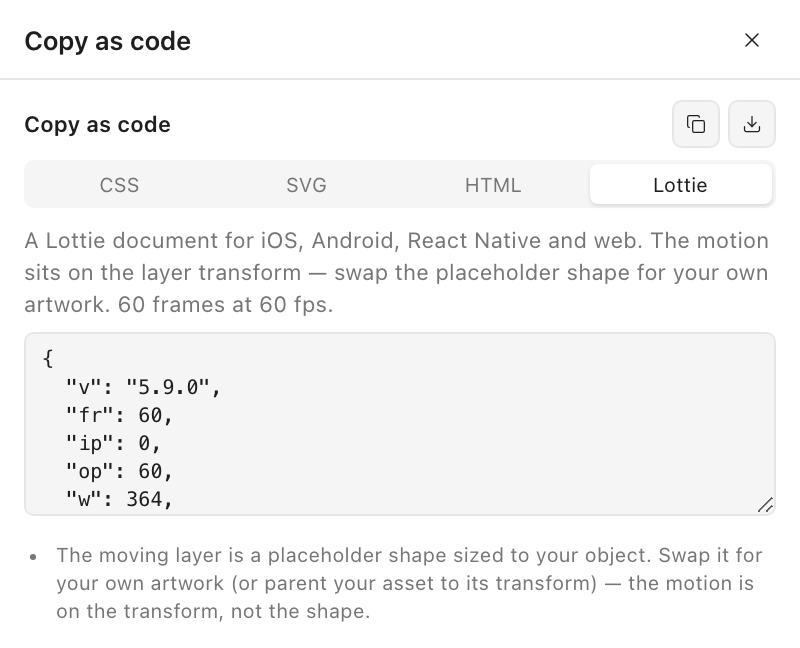
The line under the tabs tells you the composition length — 60 frames at 60 fps in the shot above — so you know what you are handing over before you copy it.
Two icon buttons sit in the panel header, and they act on whichever tab is selected. They produce identical content; the only difference is where it lands.
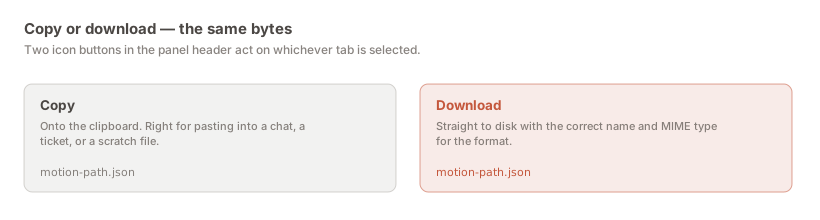
Copy is right for pasting into a ticket, a chat thread or a scratch file. Download is right when the file is going into a repository — it saves as motion-path.json with an application/json MIME type, so it arrives named correctly rather than as download.txt. Rename it to something meaningful on the way in; every export has the same default name.
All four tabs describe the same motion, generated from the same resolved polyline and timing. They differ in what the other end can do with them.
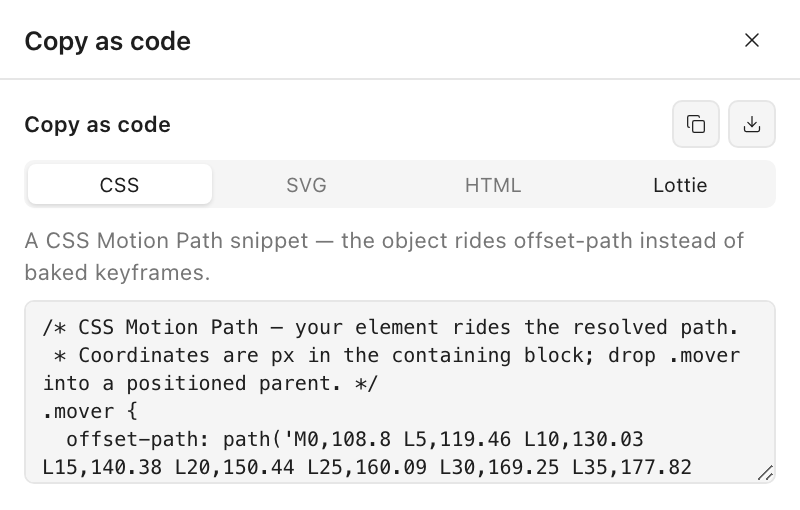
A semantic CSS Motion Path snippet: offset-path, offset-distance and offset-rotate. The object rides the path rather than moving between baked keyframes, so it is short, readable, and editable by hand afterwards. The comment at the top notes that the coordinates are pixels relative to the containing block, so the element needs a positioned parent. Filename motion-path.css.
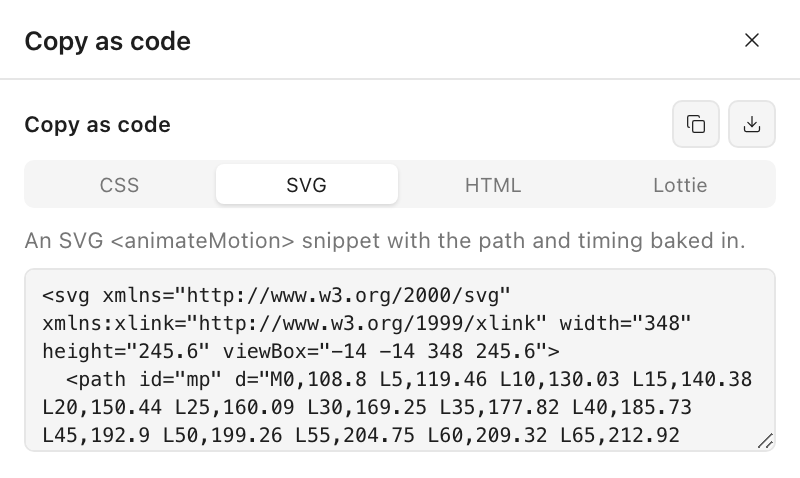
An <animateMotion> snippet with the path and timing baked in. Useful when the animation has to live inside one self-contained image rather than depend on a stylesheet. Filename motion-path.svg.
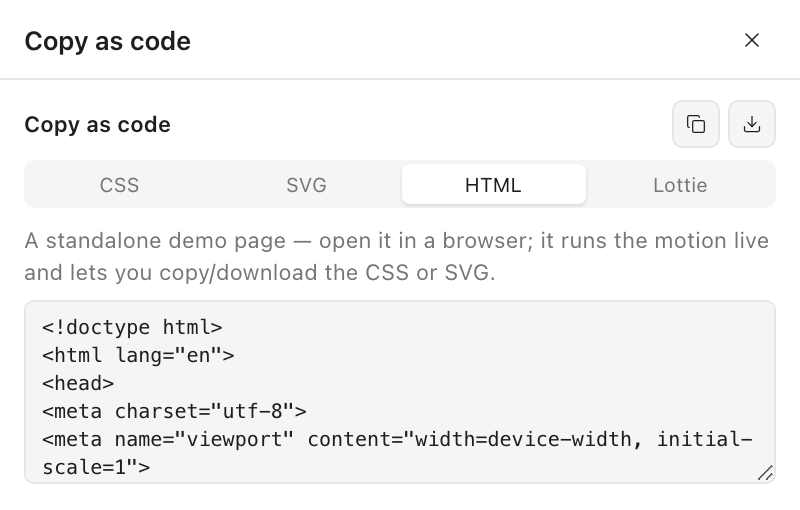
A standalone demo page. Open it in a browser and the motion runs live, with its own controls to copy or download the CSS and SVG from inside it. The fastest way to show someone the real motion without asking them to install anything. Filename motion-path-demo.html.
Filename motion-path.json, MIME type application/json. Two details are easy to skim past: the description line states the composition length before you copy, and the document is generated only when this tab is selected, because it bakes far denser keyframes than the snippets beside it and there is no reason to compute that while you are looking at CSS.
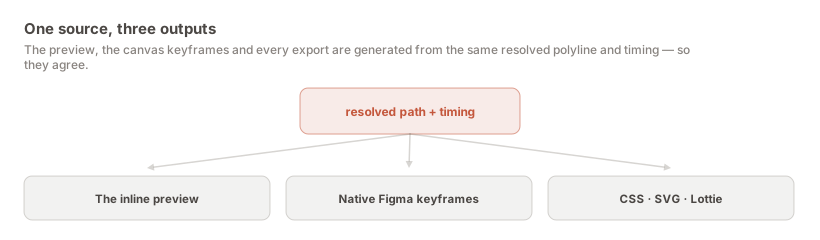
The plugin resolves your path into a polyline — whether it came from a vector pen path, the outline of a shape, or a procedural circle, wave or spiral — and pairs it with the timing model from Essentials. That single resolved pair drives the inline preview, the native keyframes written on Apply, and all four exports.
Two consequences. The exports cannot disagree with the preview, because there is no second implementation to disagree with. And the exports reflect panel state live — change the duration or easing and reopen the panel and the code has changed with it, which is a reason to export after you have finished tuning rather than partway through. The active path range is respected for the same reason: trim the traversal to 20–80% and the exports describe the trimmed motion. See animating only part of the path.
The Copy as code section hides itself entirely when there is no resolvable path — a procedural-only edge case, or an empty selection. That is deliberate: empty code boxes look broken, and there is genuinely nothing to hand off yet. Go back to the Animate tab and check that a path and an object are both resolved; why “Apply motion path” is greyed out covers the same causes.
Open it and the structure is small and readable. That matters more than it sounds: a Lottie you cannot reason about is a Lottie you cannot debug when it looks wrong on a device.
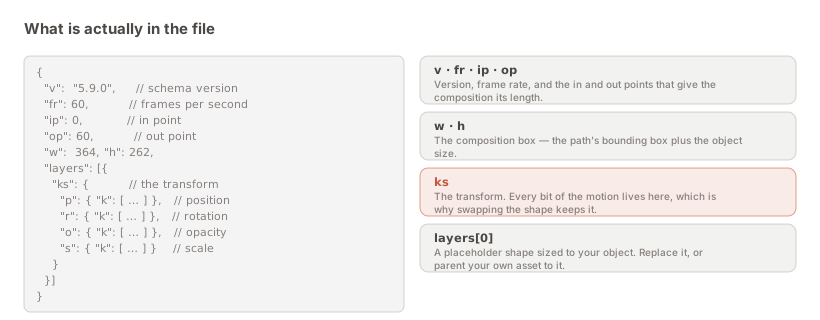
v — the schema version, 5.9.0. Chosen because it is what every maintained release of the four official players consumes without a shim.fr — frames per second for the composition.ip / op — the in and out points. With fr they give the composition its length; op is the total frame count.w / h — the composition box, derived from the path’s bounding box plus your object’s size, so the motion is framed rather than clipped.layers — one layer, holding a placeholder shape sized to your object.layers[0].ks — the transform, and the important one. p position, r rotation, o opacity, s scale.Every bit of the motion lives on ks, the transform — not in the shape. That is a deliberate design and it is what makes the file useful: the shape inside is a placeholder sized to your object, so a developer swaps it for the real artwork, or parents their own asset to that transform, and keeps the motion untouched. One motion file can drive different artwork, which is a feature the first time an icon gets redrawn after sign-off.
The code box in the panel shows only the beginning of the document and scrolls — a limit of a 320-pixel panel rather than a truncation of the output. Copy and download always act on the complete file. What is worth reading at a glance is the header: the version, frame rate, in and out points, and composition dimensions. A frame rate you did not expect, an op that does not match your duration, or a box far larger than your motion usually means the panel is describing a different path than you think — most often because the selection changed while it was open.
Open the position track and you will find far more keyframes than you placed. This is the question every developer asks when they first open the file, and it looks like a defect until you know why.
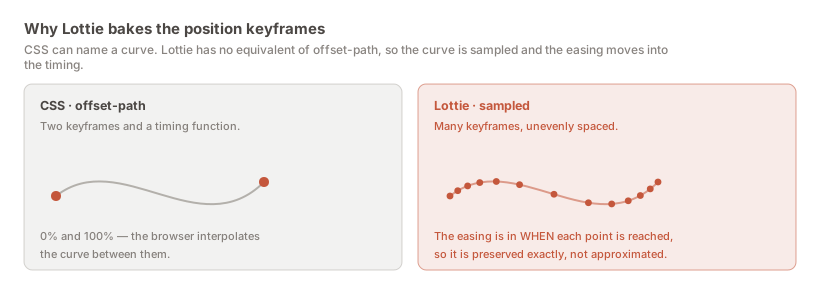
Lottie has no equivalent of CSS’s offset-path. There is no way in the format to say “follow this curve, with this easing.” An object riding a curve simply cannot be two keyframes and a timing function — the curve has to be described.
So the path is sampled densely, and the easing is folded into when each point along it is reached. The consequence runs the opposite way to what “baked” usually implies: your easing is preserved exactly rather than approximated by whichever cubic-bézier came closest. The uneven spacing of those keyframes is the easing, expressed directly. It is the same approach the plugin already uses when baking to the Figma canvas, so the Lottie and the canvas animation are not two interpretations of your intent.
A file of a few hundred kilobytes is normal, compresses very well over the wire, and is still usually smaller than the MP4 of the same animation — and unlike the MP4 it is resolution-free.
Travel is measured by real arc length too, so a dense cluster of vertices in your original vector does not quietly slow the object down as it passes through:
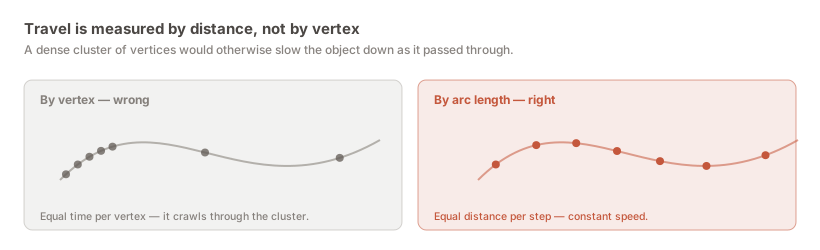
If travel were measured by vertex, the speed of the animation would depend on how you happened to draw the path. Redrawing the same shape with more or fewer points does not change the motion.
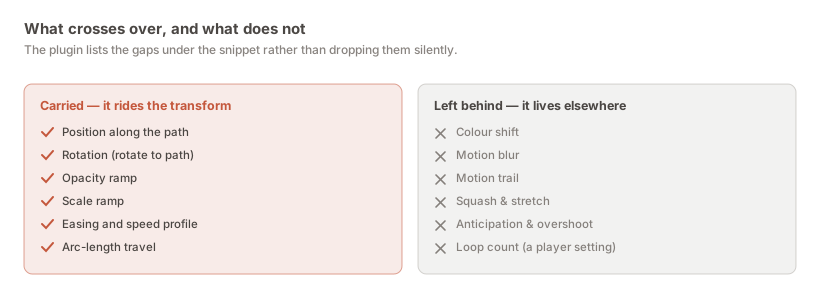
The rule is one sentence: the motion rides the layer transform, so whatever is on the transform crosses over and whatever is not, does not. That is not an arbitrary limit — it follows from the placeholder design above. If the artwork is a placeholder, an effect that animates the artwork has nothing to animate.
The plugin prints notes under the snippet listing whatever applied to your animation, generated from your configuration rather than as a fixed disclaimer. It does this instead of dropping things silently, which is the behaviour you want — a missing effect found on a device three weeks later is far more expensive than one named at export time.
Three honest options. The wrong move is to hand over the Lottie without mentioning the difference.
Accept it. Often the effect was doing less work than you think. Motion blur on a two-second move at 60 fps is frequently invisible on a device; a subtle colour shift may not survive the surrounding interface anyway. Look at the animation without it before deciding it is essential.
Rebuild it in the player. Colour is the clearest case: if a developer is swapping the artwork in anyway, tinting it over time is something the surrounding code can do, often more flexibly than the design could.
Send a video instead. If the effect genuinely is the animation, a rendering is the more honest artefact. You lose the ability to drive it from application state and you keep what the animation actually looks like. Sometimes that is the right trade.
A separate question: does the file look the same everywhere it runs? It should, and the reason is that the export deliberately keeps to the plain part of the format — transform tracks and nothing more exotic, on a schema version every maintained player reads without a shim. Lottie’s newer features have uneven implementation, and a document that renders beautifully in lottie-web and subtly wrongly on Android is worse than a plain one that renders identically. You should not need to ask which Lottie version a team is on before sending a file.
A motion design that only exists inside a Figma file is a design somebody else has to re-make. Sending a screen recording does not fix that — an engineer cannot ship pixels, so they rebuild by eye and every judgement about easing gets renegotiated by someone watching a compressed video frame by frame. Sending a written spec does not either: “ease out over 400ms” is a description of a curve, not the curve.
Lottie fixes it by being the actual thing. The file is the animation, and the timing in it is the timing you approved.
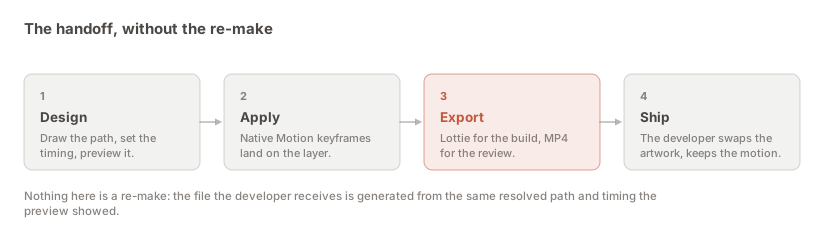
Each prevents a specific round trip. Paste them in rather than assuming.
“The moving shape is a placeholder — swap it for the real artwork.” The layer in the file is a rectangle sized to your object, not your icon. That looks like a bug if nobody says otherwise, and it is the most common first message back.
“Looping is yours to set — the file holds one pass.” loop: true in lottie-web, the loop prop in React Native, loopMode on iOS. A looped file that the player then loops again is a bug that shows up only as a slightly wrong rhythm, which is the worst kind to find.
“Here is what did not cross over.” Forward the notes from the panel. An effect that quietly vanished becomes an argument about whether the implementation is wrong; one named at export time is a decision the two of you make together, cheaply.
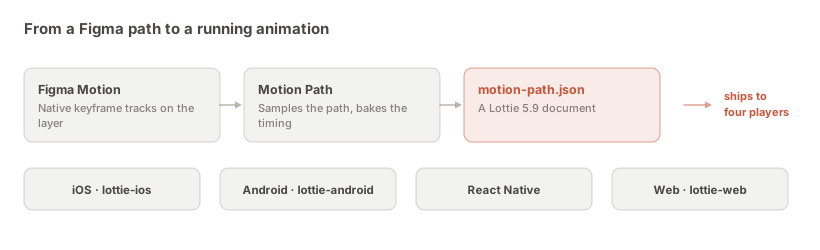
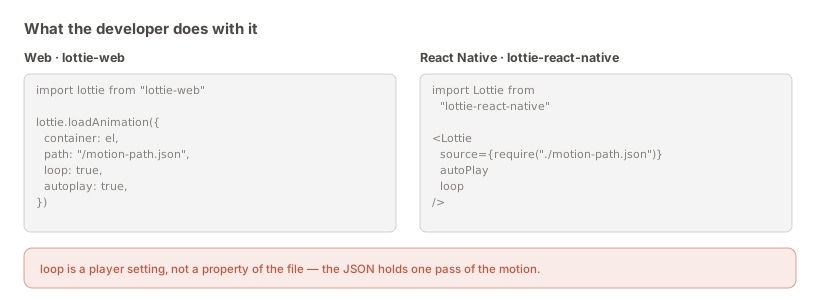
It is short everywhere — worth knowing when you are asking for the work to be prioritised, because the integration is rarely the expensive part. Web is lottie-web pointed at the JSON as a static asset; React Native is lottie-react-native with the file bundled through require; iOS is lottie-ios with the JSON in the app bundle; Android is lottie-android with it in src/main/assets. All four consume the same file, so one export covers every platform and a change to the motion is one re-export rather than four implementation tickets. The JSON guide has the snippets in full.
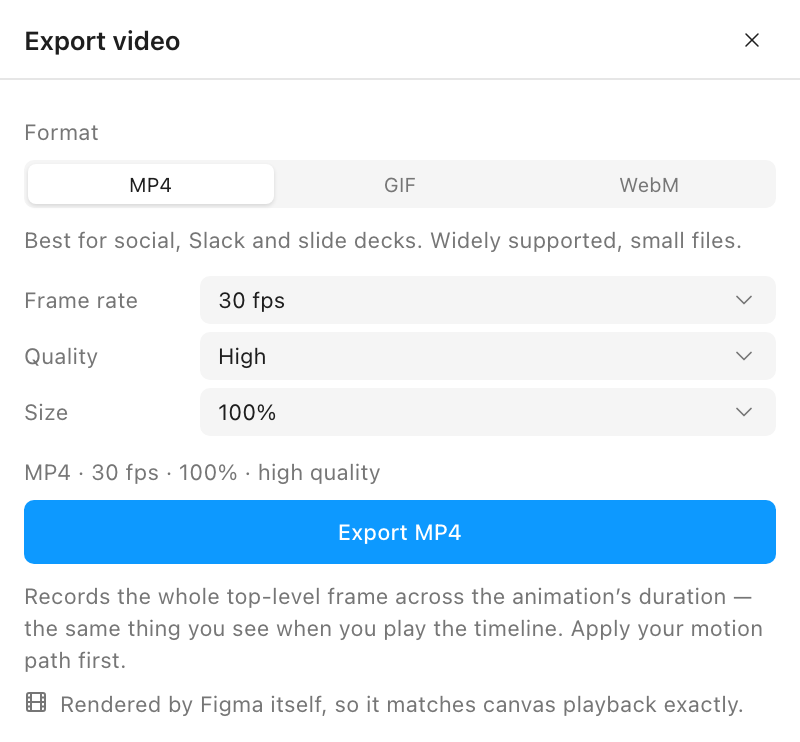
The cheapest improvement available to most handoffs, and it costs one extra export. A Lottie requires opening something to see. An engineer triaging fifteen tickets will not do that to understand what a task is about — but they will watch a two-second clip that autoplays in the ticket. The MP4 answers “what am I building?” in one second; the JSON answers “how do I build it?” when they sit down to it. The video guide covers the settings; the defaults are right for this.
Who owns the file after handoff. Either the designer owns it and it is regenerated from Figma, or engineering owns it and Figma becomes a reference. Both are legitimate. What is not is nobody deciding — then the file gets hand-edited once and the Figma file silently stops being the source of truth, and nobody finds out until the next export overwrites the edit.
Re-export rather than hand-edit. If the motion needs to change, change it in Figma and export again. The export is cheap, and keeping it regenerable is the whole reason the plugin writes native keyframes. Runtime differences like speed belong in the player, where they are meant to live.
Two failure modes account for most disagreements, and neither is the export being wrong.
Context. An animation that reads beautifully alone on a canvas can be far too slow between a tap and a screen transition, because in the file it is the only thing happening. Asking an engineer to “make it match Figma” will not fix that — shorten it and re-export.
The placeholder swap. Once real artwork replaces the placeholder, the motion is mathematically unchanged and the perception of it is not: a heavier or larger asset reads as slower at identical timing, and an asset whose visual centre sits away from its bounding-box centre can look like it is drifting off the path when the transform is exactly right. Which point of your object follows the path covers the anchor control, which is usually the fix for the second.
A Lottie that parses is not a Lottie that plays correctly, and the difference matters most when it is hardest to check — after the handoff, in someone else’s build.
The export was validated against a real player rather than by reading the JSON and deciding it looked plausible. Loaded into lottie-web, an object on a circular path holds a constant radius from the centre to within a fraction of a pixel; the facing sweeps a clean 360°; and the frame spacing is visibly uneven under an ease — which is exactly what “the easing is in the timing” should look like. Those are falsifiable claims, and they were tested.
Do the same with your own file. Drop it into any Lottie preview tool and compare it against the plugin’s inline preview, checking three things: does it start and end where you expect, is the speed even where the path is even, and does the composition box frame the motion rather than clipping it.
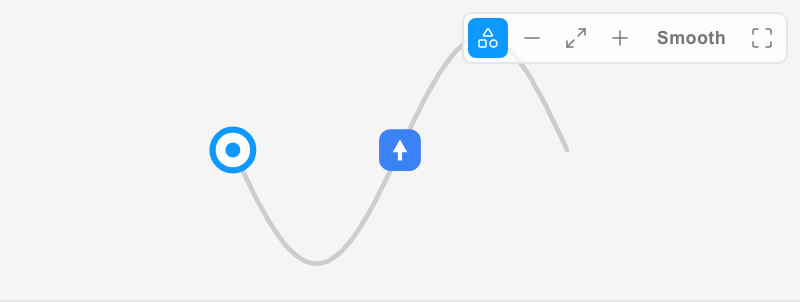
The comparison is fair because the preview draws your actual layer at its true size relative to the path, rather than a placeholder dot — and because preview, canvas keyframes and exports all come from one resolved polyline and one timing model.
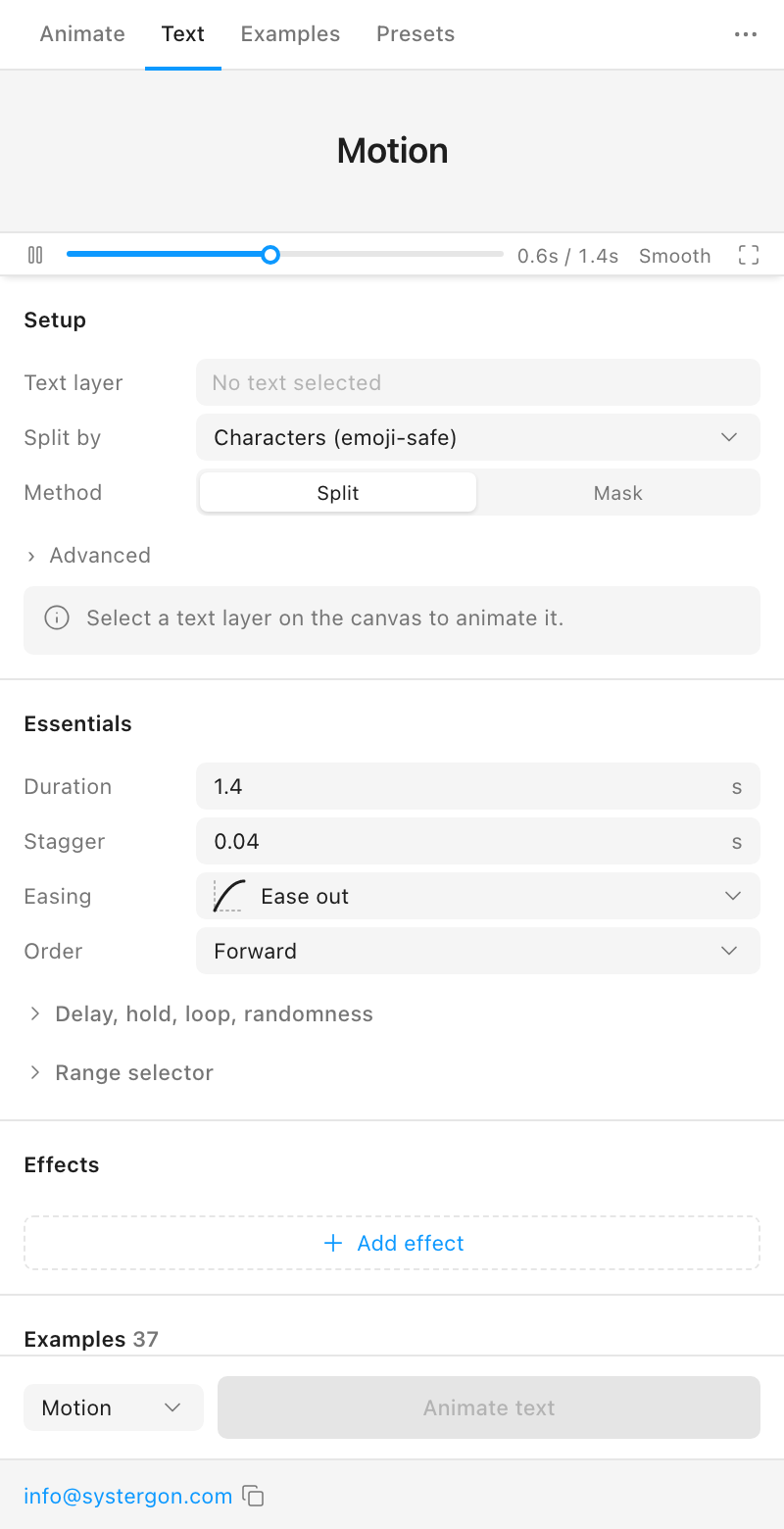
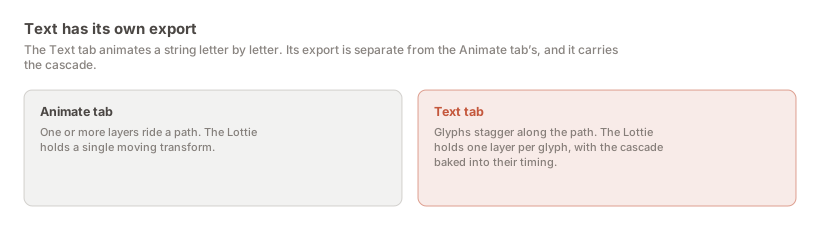
Text animated along a path is a different shape of animation — many glyphs, staggered — so it has a separate export rather than being squeezed into the Animate tab’s. The Lottie it produces holds one layer per glyph, with the stagger baked into each one’s timing. Animating text letter by letter covers the setup.
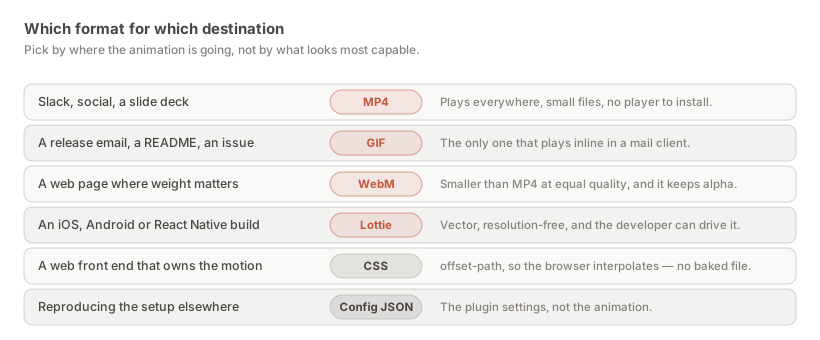
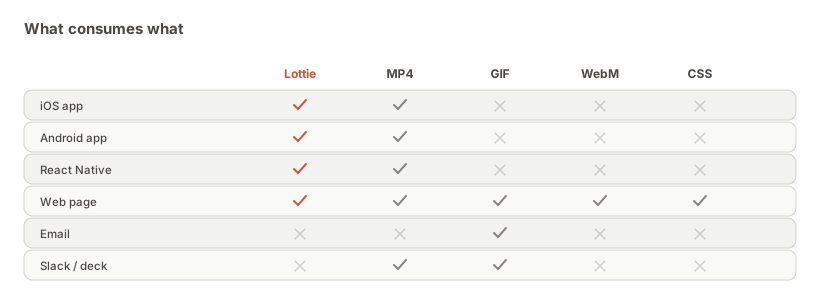
Against GIF. No contest on quality — GIF is 256 colours and much heavier — but GIF plays inline in email, READMEs and issue trackers, and Lottie does not. That single property keeps GIF alive.
Against MP4. MP4 asks nothing of anyone. If the recipient is going to watch the animation rather than build with it, MP4 is right and a Lottie is an obstacle. Export video instead.
Against CSS. On the web specifically, CSS is often the better artefact: two keyframes and a timing function, readable, and editable by a front-end developer who wants to adjust the curve. A Lottie’s few hundred baked keyframes are not something anyone edits by hand. Choose Lottie on the web when the animation is complex or shared with a mobile app; choose CSS when it is a simple interaction the browser should own.
The general rule: a rendering for people, a description for builds. The export hub lays out every route.
A format is a commitment, and the cost is not zero — someone adds a player dependency, and there is a first-time conversation about who owns the files.
It is worth it when motion is part of your product rather than part of your presentations: when animations appear in the interface, respond to state, and get iterated. There, Lottie removes an entire class of work — the rebuilding, the spec-writing, the arguing about whether the implementation matches the design — because the file is the design.
It is not worth it when animation is something you show in reviews and ship rarely. The overhead buys you nothing a good MP4 does not. The middle case — a few key animations, shipped, iterated occasionally — is where most teams live, and it is worth it there too, mostly because one file covers every platform.
No. Figma’s native Copy as produces CSS, React and JSON from a Motion animation, and Dev Mode inspects the keyframes, but there is no Lottie output in Figma itself. A plugin has to generate it. Motion Path adds it under … → Copy as code → Lottie.
Apply the motion so native keyframes exist, open the … menu in the Motion Path titlebar, choose Copy as code, select the Lottie tab, then use the copy or download icon in the panel header. The download saves motion-path.json.
A JSON file format for vector animation: shapes plus the keyframes that move them, drawn at runtime by a player. It originated at Airbnb and has official players for iOS, Android, the web and React Native, which is why one file can run on every platform.
Schema version 5.9.0, which every current player consumes — lottie-web, lottie-ios, lottie-android and lottie-react-native included. The export keeps to transform tracks all four implement identically, rather than newer features with uneven support.
The … menu in the plugin titlebar, then Copy as code, then the Lottie tab. Copy and download icons sit in the panel header and act on whichever tab is selected.
Because Lottie has no equivalent of CSS’s offset-path, so a curve cannot be expressed as two keyframes and a timing function. The path is sampled densely and the easing is folded into the timing of each sample. The upside is that your easing is preserved exactly rather than approximated.
Exactly, rather than approximately. Because the easing lives in the spacing of the samples, there is no fitting step where your curve gets replaced by the nearest available one.
That is intentional. The moving layer is a placeholder sized to your object, because the motion lives on the transform rather than in the shape. A developer swaps the placeholder for the real artwork, or parents their asset to that transform, and every bit of the motion carries over — which also means one motion file can drive different artwork.
The file holds one pass of the motion. Looping is a player setting — loop: true in lottie-web, the loop prop in React Native, and the equivalent on iOS and Android. If your Figma animation repeats the traversal, the export notes say so.
No. Those live in the artwork or on the canvas rather than on the layer transform, so Lottie cannot carry them. The plugin lists any that applied to your animation in the notes under the snippet. If they are essential, export video instead.
CSS describes the curve — offset-path plus a timing function, which the browser interpolates. Lottie cannot express a curve that way, so it samples the path and folds the easing into the timing. CSS is shorter and hand-editable; Lottie runs on mobile as well as the web.
Typically a few hundred kilobytes of repetitive numeric text, which compresses very well over the wire — usually smaller than the MP4 of the same animation, and unlike the MP4 it is resolution-independent.
It should. The export deliberately sticks to transform tracks that every player implements the same way, rather than reaching for newer Lottie features with uneven support. That is the reason the file is as plain as it is.
You can, but it is usually a mistake on a file that will be re-exported: a hand-edited Lottie cannot be regenerated without losing the edit, and the Figma file quietly stops being the source of truth. Change it in Figma and export again, or handle the difference in the player.
No. The plugin writes native Figma Motion keyframes, so the animation belongs to your file rather than to the plugin. You would lose the ability to author new paths, not the work already applied.
The timing has not changed. Larger and visually heavier assets read as slower at identical durations. Review the swapped version rather than the export, and shorten the duration if it needs it.
Yes — the Text tab has its own export in the same place, and it carries the letter-by-letter cascade as one Lottie layer per glyph, with the stagger baked into their timing.
There is no resolvable path yet — usually an empty selection or a procedural-only edge case. The section hides rather than showing empty boxes. Resolve a path and an object on the Animate tab.
No. Every route in this panel is a pure export — it reads the applied animation and writes nothing back.
Motion Path is free on the Figma Community, and the Lottie export is part of it. Install it here.
Install Motion Path — it’s free → Browse 300+ animation examples