Install Motion Path — it’s free → See the product page
The short answer: there are five useful ways an animation leaves Figma Motion, and the right one depends entirely on where it is going. Video (MP4, GIF, WebM) for a human to watch. Lottie for an app or web build to run. CSS or SVG for a browser to interpolate itself. Figma’s own Copy as for Dev Mode handoff. Config JSON to reproduce the setup somewhere else. Four of those five live in one menu.
This is the hub page. Each route gets a section below with the exact steps, and a link to the guide that covers it properly.
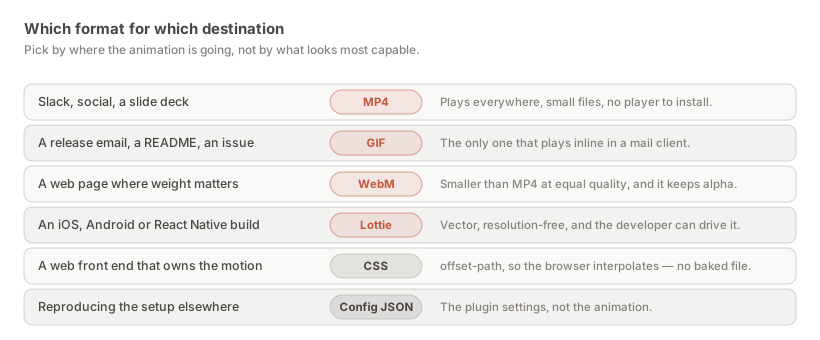
Almost every wrong export starts with picking a format before deciding who receives it. A Lottie sent to a stakeholder is useless to them; an MP4 sent to an iOS engineer is a description of the work rather than the work.
Read that table as a question about the recipient, not about quality. All of these outputs are faithful; they differ in what the other end can do with them.
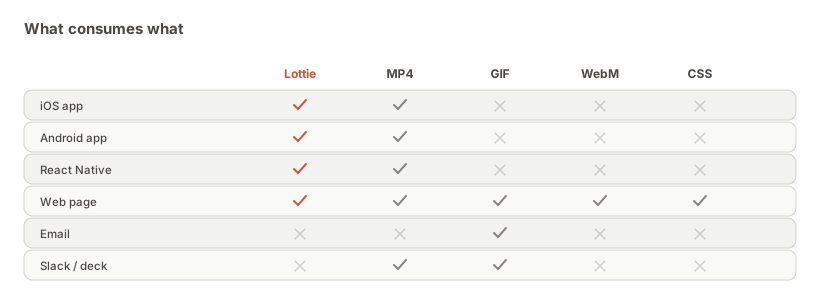
It helps to see that these are not five settings on one exporter. They are three genuinely different things, and knowing which kind you are producing prevents most of the confusion downstream.
A rendering — MP4, GIF, WebM — is pixels over time. It is finished. Nobody downstream can change its colour, its size beyond scaling, or its timing. That finality is the point: what you send is exactly what they see, on every device, with no player to install and nothing to go wrong. It is also the reason it is the wrong thing to send to an engineer who has to ship the motion, because they cannot ship pixels; they would have to rebuild the animation by eye.
A description — Lottie, CSS, SVG — is instructions for producing the motion, executed at runtime by a player or a browser. It stays vector, so it is resolution-free. It can be sped up, slowed, recoloured in the player, and driven by product state: paused at 40% while a form validates, played to completion on success. That is a category of thing a video cannot be. The cost is that a player has to exist and behave, and that some things simply cannot be described in the format — which is what the fidelity section of the Lottie guide is about.
A recipe — Config JSON — is neither. It does not contain the animation at all; it contains the settings that generate one. It is for moving a technique between files or between people, not for shipping.
Most bad handoffs are a category error rather than a format error: a rendering sent where a description was needed, or a recipe sent where either was.
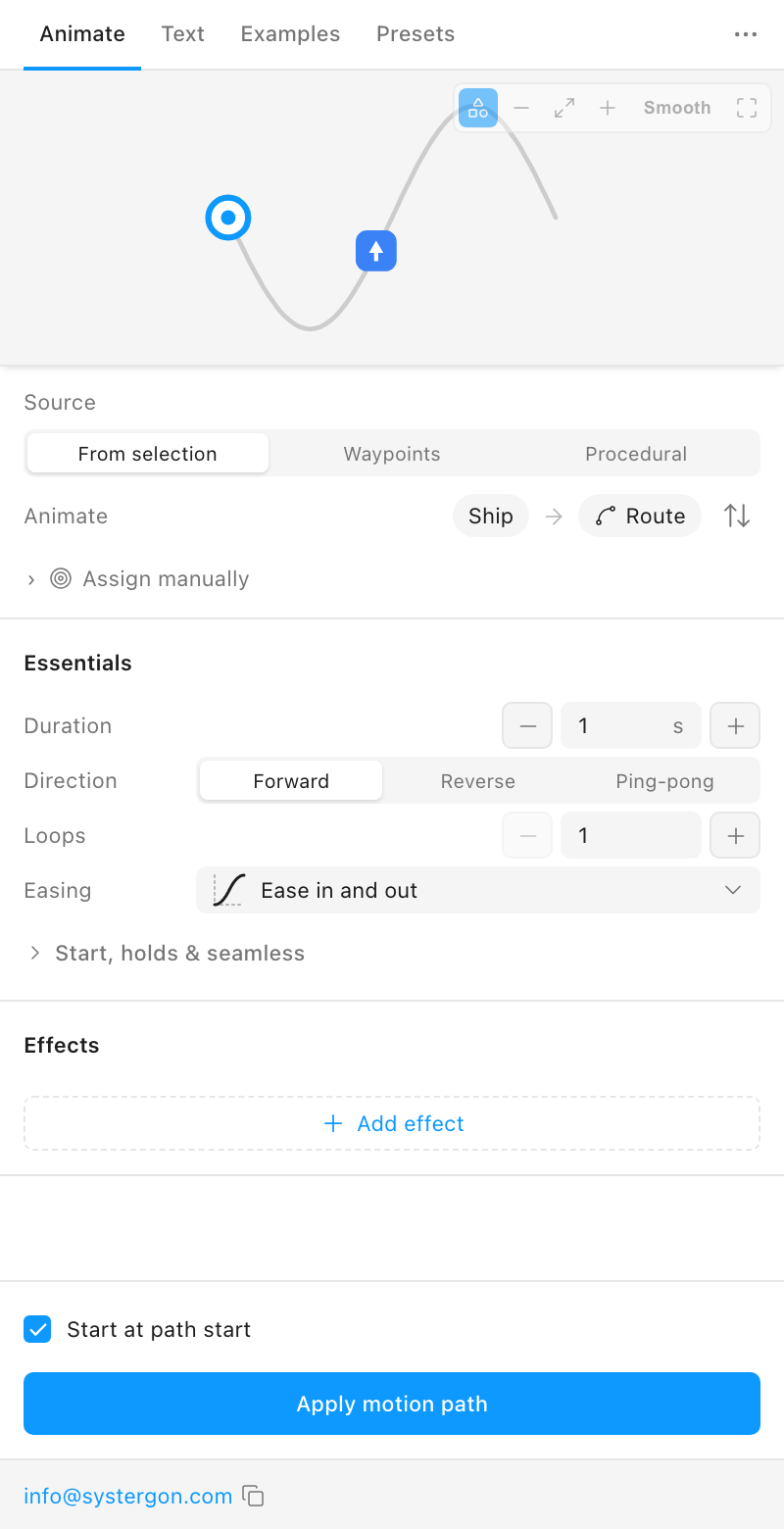
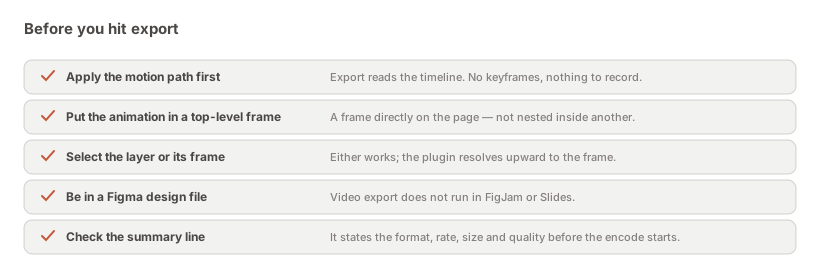
Every route below reads the applied timeline, not the preview. The plugin shows your motion live in the panel before anything touches the canvas, and that preview is not an animation yet. Press Apply motion path first.
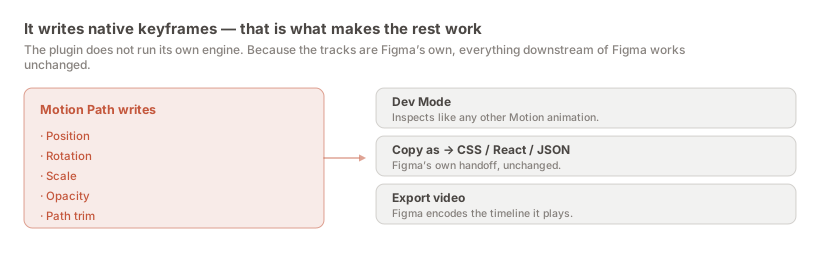
Applying writes native Figma Motion keyframe tracks onto your layer. That is the whole trick, and it is why Figma’s own tools keep working on the result:
Click the … button in the Motion Path titlebar.
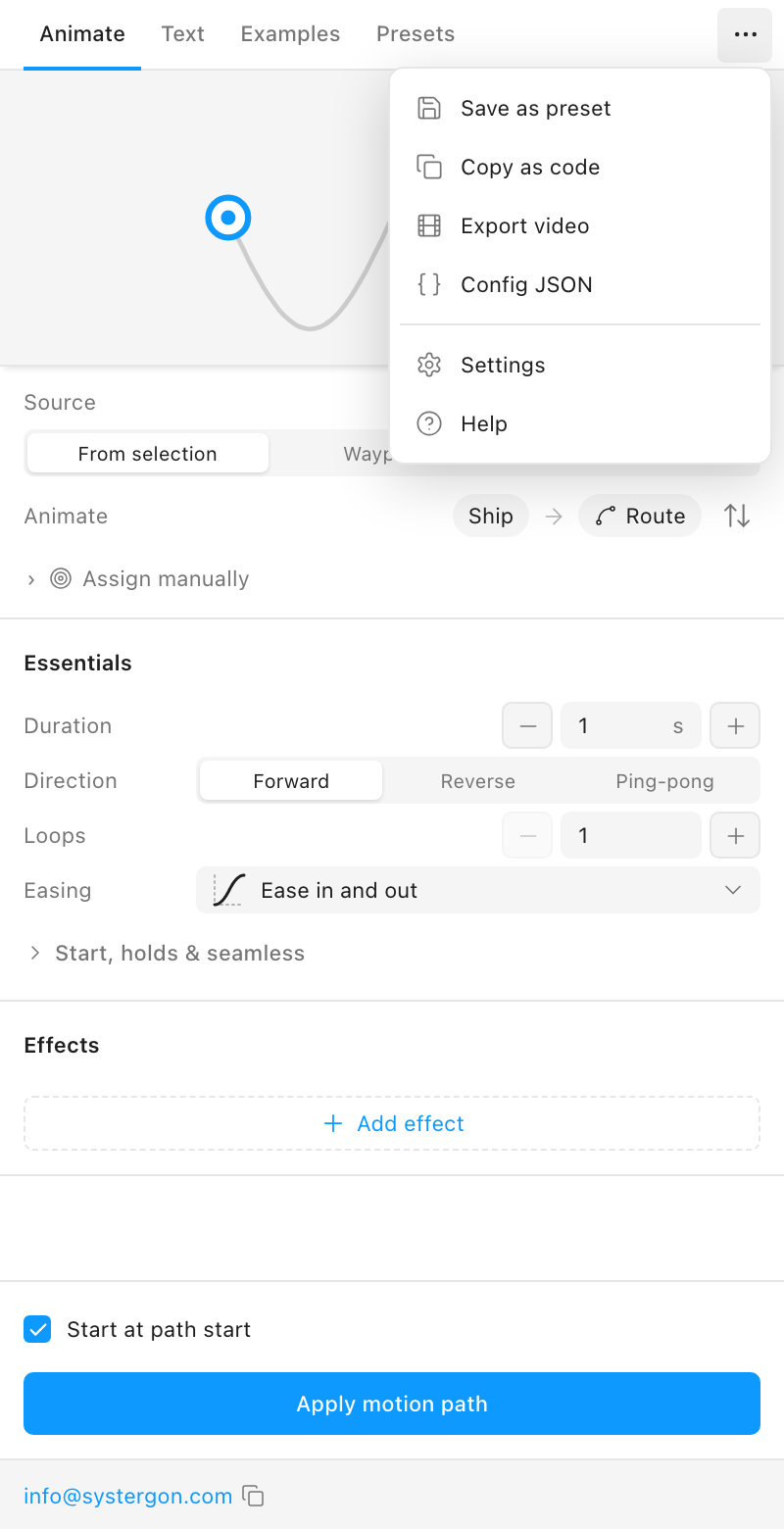
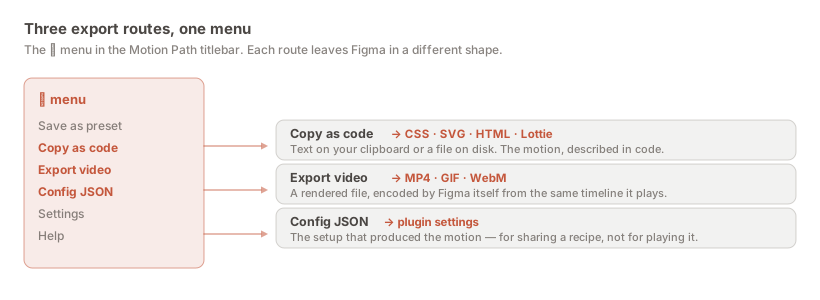
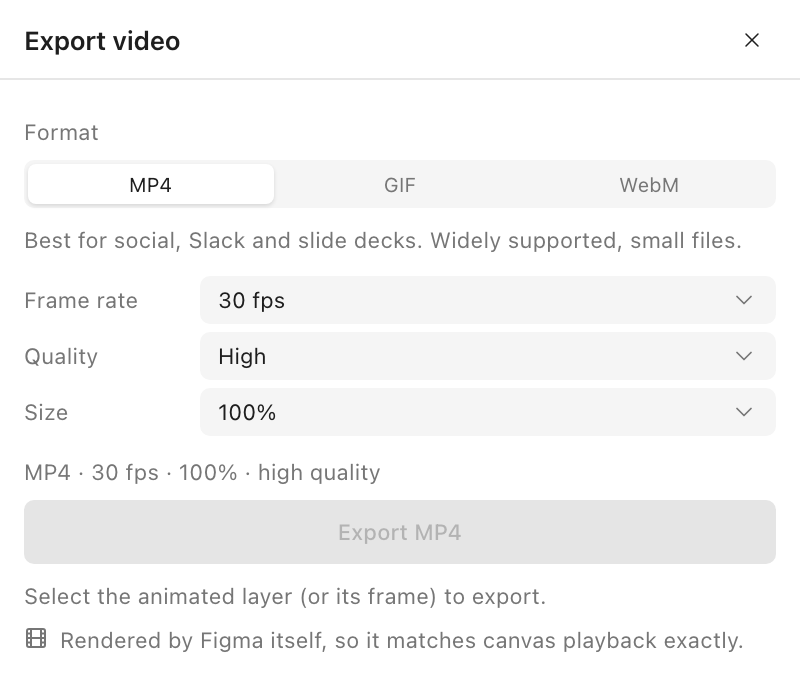
Choose Export video. Three formats, and the panel changes to match the one you pick.
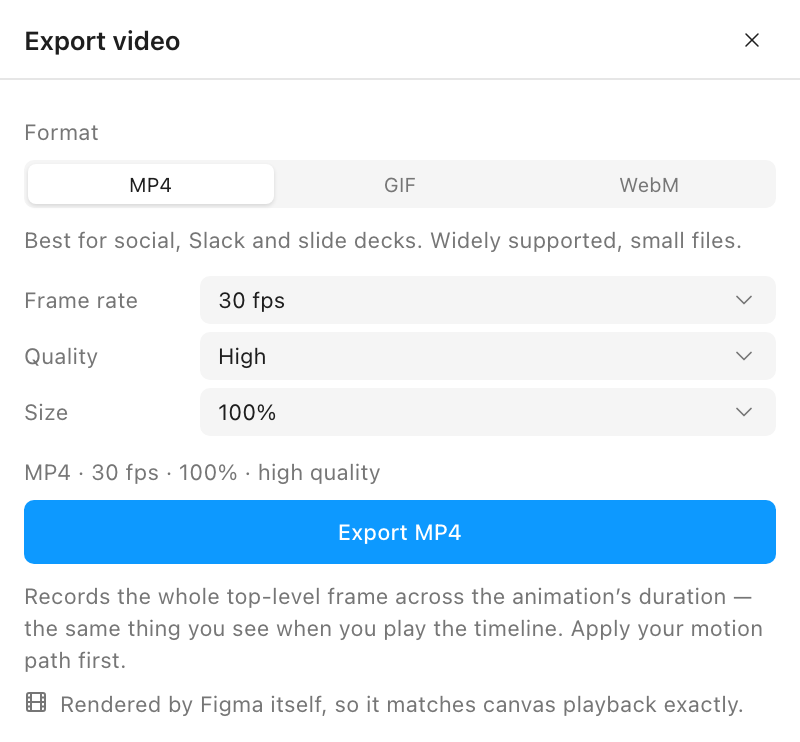
The thing worth knowing is that this is not a screen recording and not a re-render. Figma grew a video encoder in Plugin API Update 131, and the plugin hands your animation straight to it — so the file you get back is canvas playback rather than an approximation of it.
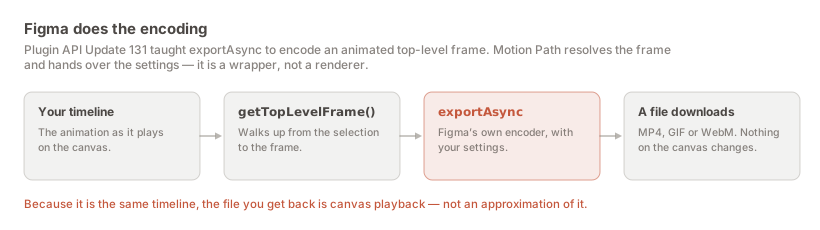
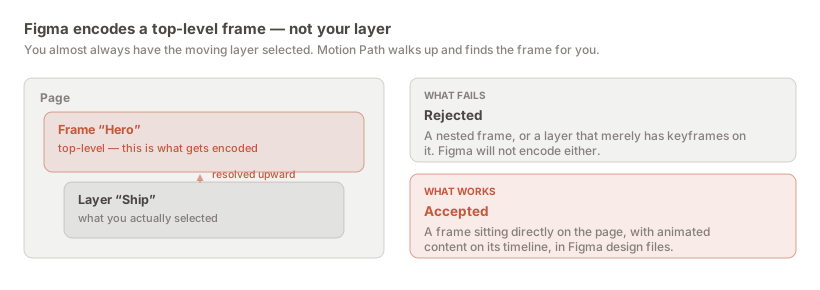
One rule governs it: Figma encodes a top-level frame, meaning a frame sitting directly on the page. You almost never have that selected — you have the layer that moves — so the plugin walks up and finds the frame for you.
Full detail in the video export guide, and the MP4 settings specifically in the MP4 section.
Choose Copy as code, then the Lottie tab.
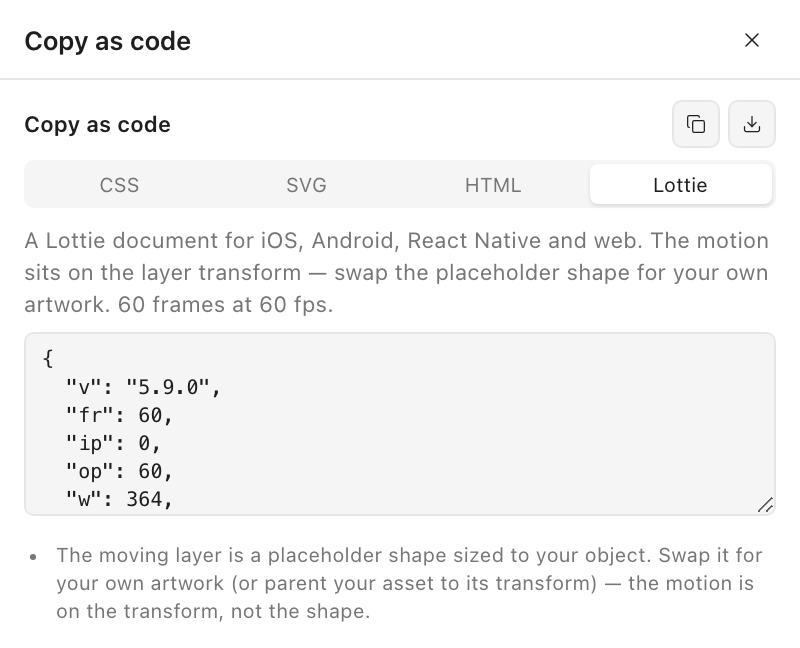
This is the export Figma cannot do natively. You get a complete Lottie 5.9 document — copy it, or download it as motion-path.json — that lottie-ios, lottie-android, lottie-react-native and lottie-web all consume.
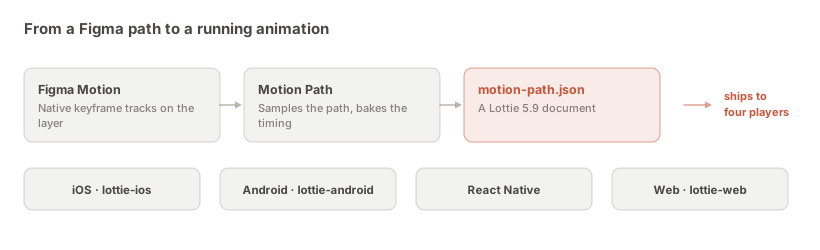
The step-by-step is in Figma Motion export to Lottie; the fidelity question — what carries over and what does not — is in what survives the conversion to Lottie.
The same Copy as code panel has three other tabs, and they are genuinely different outputs rather than variations on one.
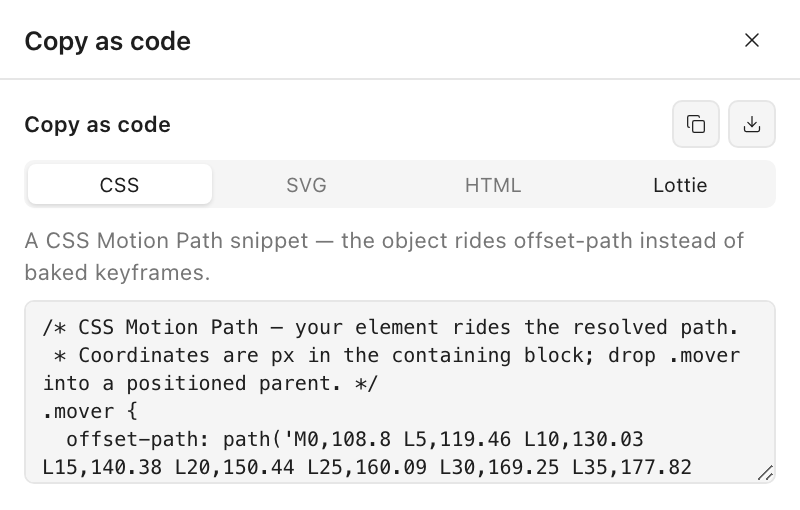
CSS emits a semantic offset-path / offset-distance / offset-rotate snippet. This is the one to reach for when the browser should own the motion: it is two keyframes and a timing function, it is readable, and a front-end developer can edit the curve by hand afterwards.
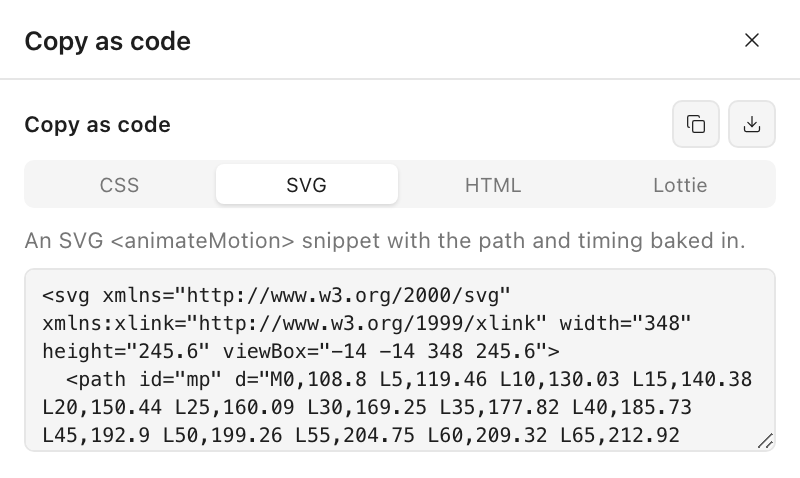
SVG emits an <animateMotion> element with the path and timing baked in — useful when the animation has to live inside a single self-contained image.
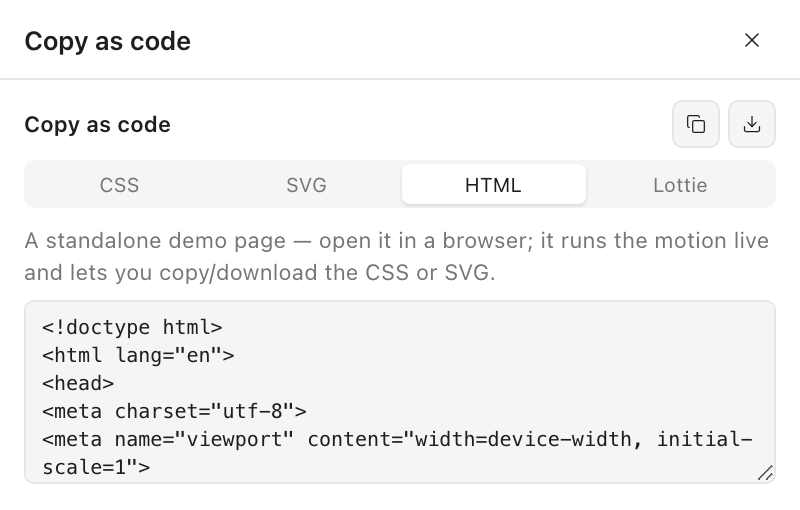
HTML emits a standalone demo page. Open it in a browser and the motion runs, with buttons to copy or download the CSS and SVG from inside it. It is the fastest way to show someone the real thing without sending a file they have to install something to open.
This one is not in the plugin at all, and it is easy to forget it exists. Because Motion Path writes native keyframes, everything Figma offers for its own Motion animations works on the result: Dev Mode inspects the tracks, and Figma’s Copy as produces CSS, React and JSON.
Use it when your developer is already living in Dev Mode and wants Figma’s representation rather than a third-party one. Its limit is the reason this page exists: it does not produce Lottie.
The last menu item is a different kind of thing, and mistaking it for an animation export is the most common confusion here.
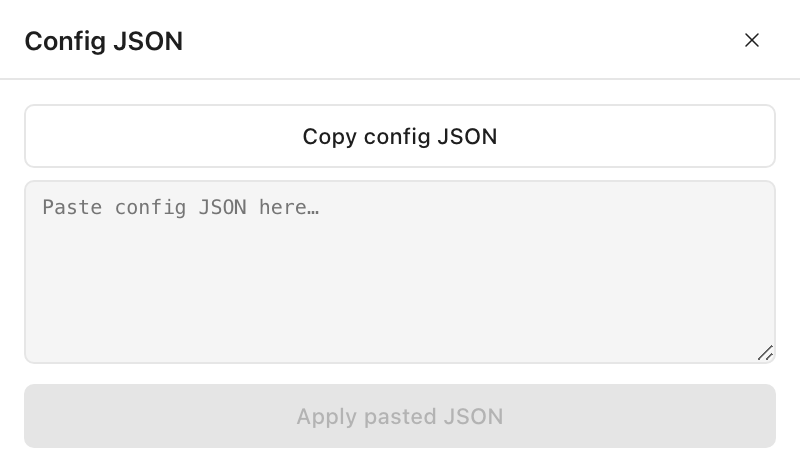
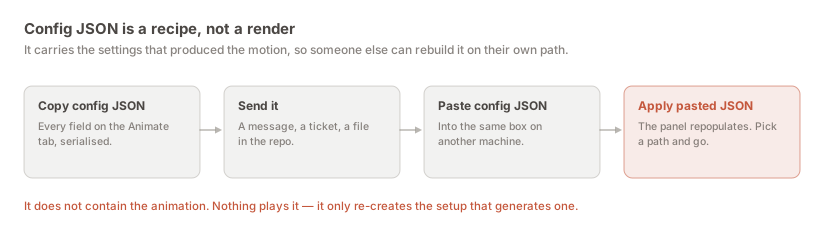
Config JSON carries the settings that produced the motion — duration, direction, loops, easing, effects — so somebody else can rebuild the same recipe on their own path. Nothing plays it. If you wanted a JSON that plays, you wanted Lottie; the JSON comparison lays out all three side by side.
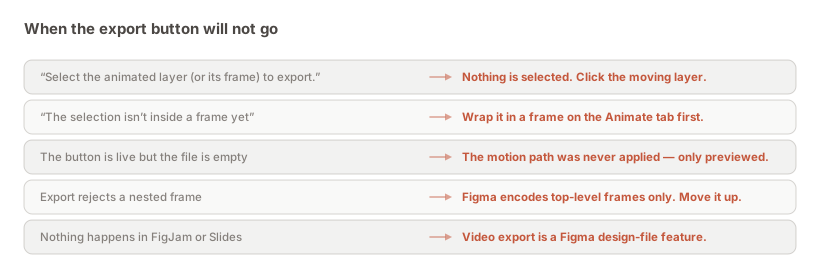
The panel tells you which of these it is rather than failing silently. The two that catch people most often are a motion that was previewed but never applied, and an animation living in a nested frame.
Nothing here creates a live link. Every export is a snapshot taken at the moment you pressed the button, and when the design changes the exported file does not. That sounds obvious written down, and it still catches teams out three sprints later when the shipped animation is subtly not the one in the file.
Two habits make it survivable. First, re-export rather than hand-edit. A Lottie that a developer has tweaked by hand cannot be regenerated without losing the tweak, which quietly makes the Figma file stop being the source of truth. If something needs changing, change it in Figma and export again — the export is cheap, and it is the whole reason the plugin writes native keyframes rather than running its own engine.
Second, send the recipe with the render when a technique is going to be reused. If a colleague needs the same easing on a different path next month, a Config JSON gets them there in seconds, where an MP4 gets them a reference they have to reverse-engineer.
It is also worth being clear about which parts of a design an export does not carry. All of these routes describe the motion of layers. None of them carry a component’s variants, an auto-layout rule, a prototype interaction outside the timeline, or a text style. If the thing you actually need handed over is the interface rather than the motion, an animation export is the wrong tool and Dev Mode is the right one.
Exporting the preview. Covered above, but it is the single most common failure and it produces a file that looks fine until you play it. The preview is a simulation running in the plugin panel; the export reads the canvas. Apply first, every time.
Scaling up at export instead of designing bigger. The size multiplier goes to 4×, and it is tempting to treat it as a quality control. It is not — it scales the frame, so a 4× export is sixteen times the pixel data and the source artwork is still whatever resolution you drew. If you need a crisp large render, make the frame larger; if you need resolution independence, you want Lottie, not a bigger video.
Choosing GIF because it is familiar. GIF is the right answer in exactly one situation — when the animation has to play inline somewhere that will not run a video element, which in practice means email clients, README files and issue trackers. Everywhere else it is a much larger file with 256 colours and visible banding. In Slack, in a deck, on a web page, MP4 or WebM is smaller and looks better. The video guide has the comparison.
Apply the motion, open the … menu in the Motion Path titlebar, and pick a route: Export video for MP4, GIF or WebM, or Copy as code for Lottie, CSS, SVG or a standalone demo page. Video is encoded by Figma itself; the code formats copy or download instantly.
Figma gained a video encoder in Plugin API Update 131, but it is exposed through the plugin API rather than as a button in the Figma UI. A plugin has to call it. Motion Path does, and passes your format, frame rate, quality and size straight through.
Copy as code produces the animation in a form something else can run — Lottie, CSS, SVG or a demo page. Config JSON produces the plugin settings that generated the animation, so the setup can be rebuilt elsewhere. One is the output; the other is the recipe.
Either. Figma encodes a top-level frame, but you normally have the moving layer selected, so the plugin resolves upward and finds the frame for you.
Almost always because the motion was previewed but never applied. The preview runs in the panel without writing anything to the canvas; export reads the applied timeline. Press Apply motion path and export again.
No. Video export is a Figma design-file feature. The code exports — Lottie, CSS, SVG, HTML — do not depend on the encoder and are not affected.
Lottie if they are building for iOS, Android, React Native or the web and the motion is part of the product. CSS if it is a web interaction the browser should own. An MP4 alongside either, so they can see the intended result at a glance.
The path range controls which portion of the path the object travels, and every export reflects it — so trimming the range trims what you export. See animating only part of the path.
No. Motion Path is free on the Figma Community, exports included. Install it here.
Install Motion Path — it’s free → Browse 300+ animation examples