Install Sound Kit — it’s free → See the product page
Open a mature Figma file and count what has been designed. Colour has tokens. Type has styles. Spacing has variables. Components have variants, and since Motion shipped, transitions have a timeline. Then ask what the thing sounds like, and the honest answer is almost always the same: nobody knows yet, and it will be decided during implementation, by an engineer, from a folder of MP3s someone dropped in Slack.
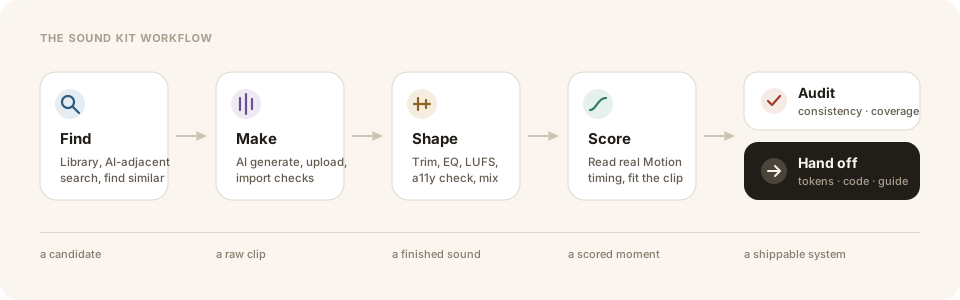
That is not a small gap. Sound is the part of an interface users feel most immediately and complain about most loudly — and it is the only part that routinely ships without ever being designed. Sound Kit is our attempt to close that: a complete sound-design workflow that lives inside the Figma plugin panel, from finding a clip to handing engineering a specification.
This is the field guide — the whole workflow, end to end.
The Browse tab is a curated library of interface sounds — taps, toggles, sends, successes, errors, notifications, system audio. The useful trick is to search by what the sound does, not what it is called: type “toggle off” or “destructive confirm” rather than “click 3 final v2”.
Every result row draws its real waveform and an LUFS badge as it loads. That sounds cosmetic; it is not. A clip that clips, a clip with 400 ms of silence at the front, or a clip eight decibels louder than everything else in your set is visible before you press play — which saves you auditioning things you were never going to keep.
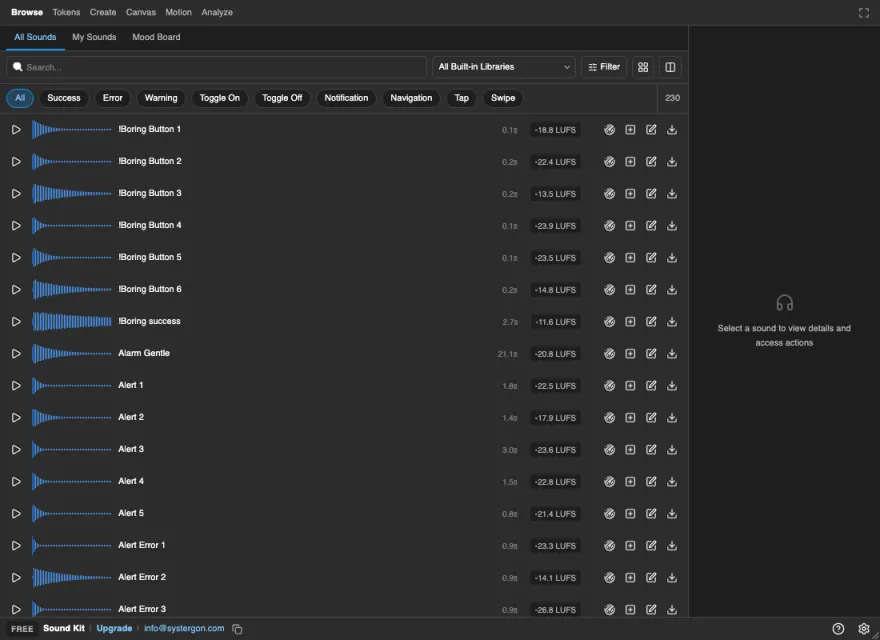
Two things worth knowing early:
You can also connect Freesound, Pixabay or your own hosted catalogue and their results appear in the same list, with the same waveform and loudness treatment.
Some sounds do not exist in any library because they are specific to your product. On the AI Generate tab you describe what you need — “short soft confirmation chime, warm, no reverb” — set a length, and generate.
Generation runs through OpenAI, ElevenLabs or Replicate on your own API key. You add the key once in Settings, you generate on your own account, and you pay the provider directly for exactly what you make. We do not broker it and we do not resell it.
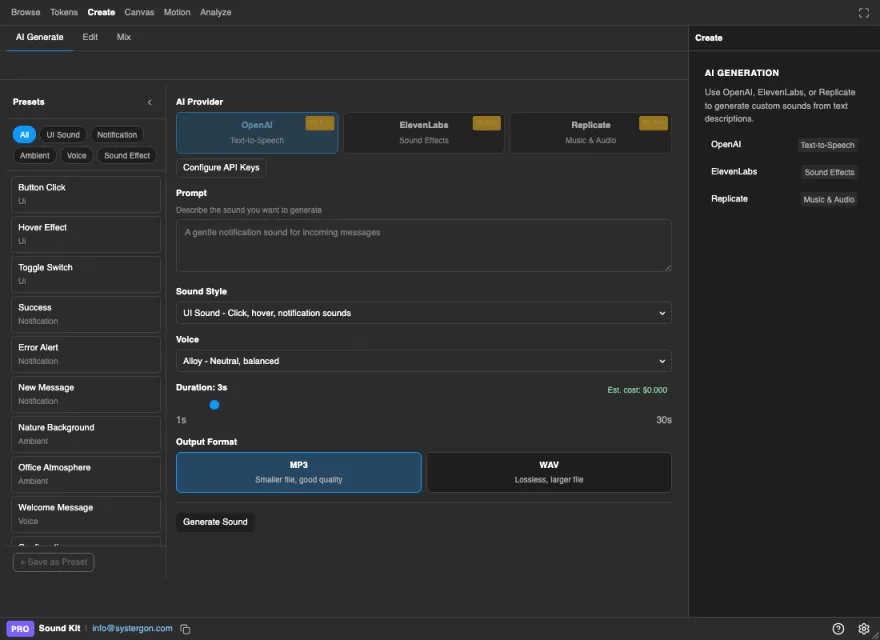
Two features do most of the work here. Variations generates a batch of takes from one prompt, so you choose between real alternatives instead of re-rolling and hoping — and a hover and a press often come out of the same batch. Match a reference points the generation at a sound you already ship, so the new clip lands in your existing voice rather than sounding like a stranger.
You can also upload your own files. On import, Sound Kit checks each one for clipping, DC offset, leading silence, unexpected length and loudness far from target — so problems surface at import time rather than after the file is on thirty screens.
Most UI sounds need about thirty seconds of work to go from close to right, and that should not require a round trip to a DAW. The Edit view gives you a real waveform: set in and out points, add short fades at the edges to kill the click a hard cut leaves behind, then reach for effects — EQ, reverb, echo, pitch, speed.
Everything is rendered offline against the actual audio buffer, so what you preview is exactly what gets attached and exported. A/B any edit against the original at any point, because a surprising number of “improvements” are not.
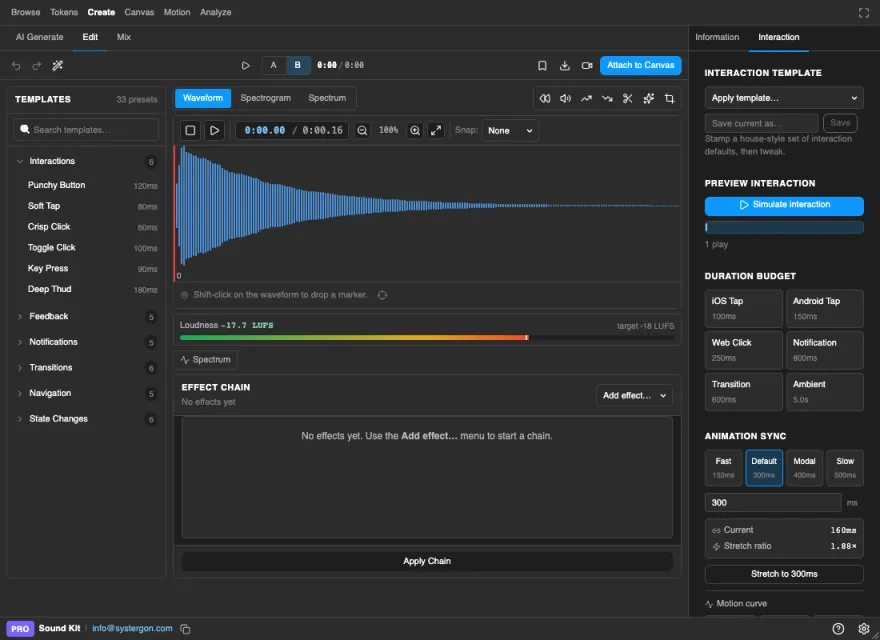
If you do nothing else in this section, do this: set a loudness target and normalise everything to it. Sounds pulled from different sources arrive at wildly different levels, and a success chime six decibels louder than the error buzz is the single most common reason a sound set feels amateur. Sound Kit normalises to LUFS — how loud something actually sounds — not to peak level, with presets matching what iOS, Android and web expect.
Two more tools earn their place here. Switch the display to a spectrogram and a sound stops being a blob: you can see the resonance around 3 kHz that makes it piercing, and aim your EQ at it instead of sweeping blindly. And run the accessibility check, which flags clips that spike too fast, sit too bright, or are simply too loud for something a user will hear forty times a day — the sounds most likely to get your audio muted permanently.
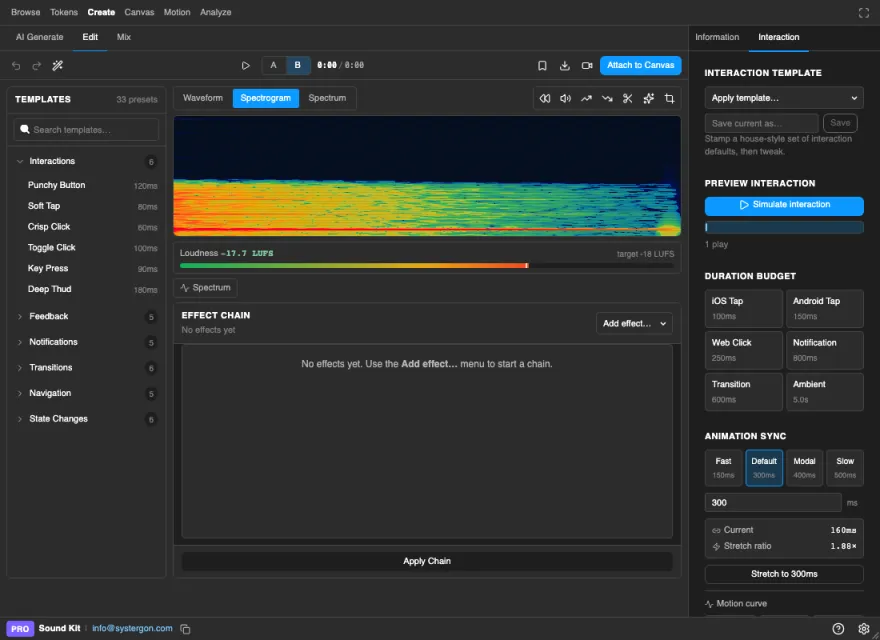
Beyond a single clip, the Mix view layers several sounds into one signature — a body, a transient and a tail — each track with its own effects and time offset, bounced down to one attachable sound. Most memorable product sounds are built this way.
Figma shipped Motion; nothing shipped to score it. Select an animated layer and Sound Kit’s Motion tab reads its real Figma Motion data — duration, delay, easing curve, the properties being animated — and suggests sounds whose length and shape suit it.
Then Sync to animation fits the clip to that exact curve: trimmed or stretched to the real duration, with the transient landing on the animation’s key moment rather than at the start of the file. A 400 ms slide with a 900 ms whoosh feels broken, and this is how you stop doing that by accident.
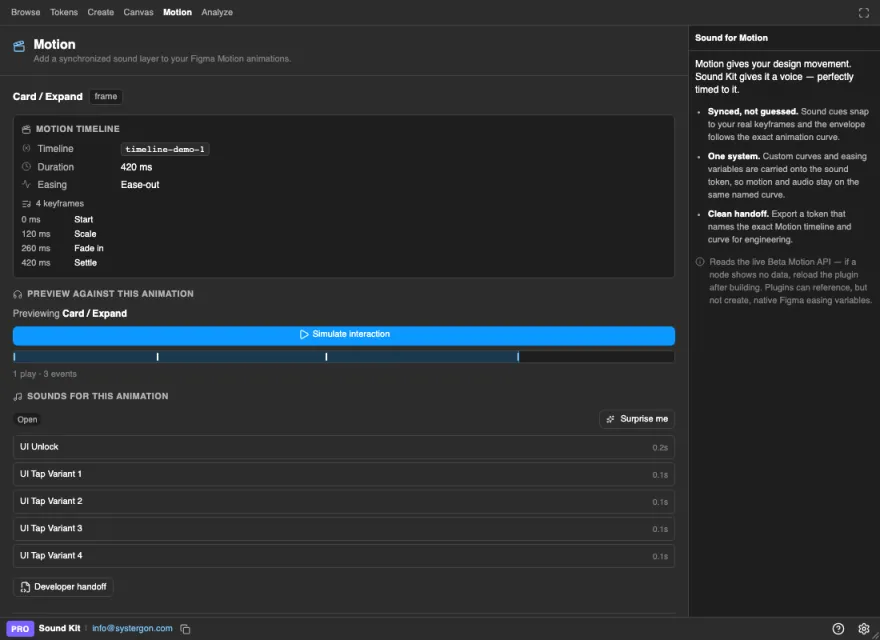
Scan the page and you get every animated layer listed with whether it has sound. Silent animations are nearly always oversights rather than decisions — this finds all of them in one pass.
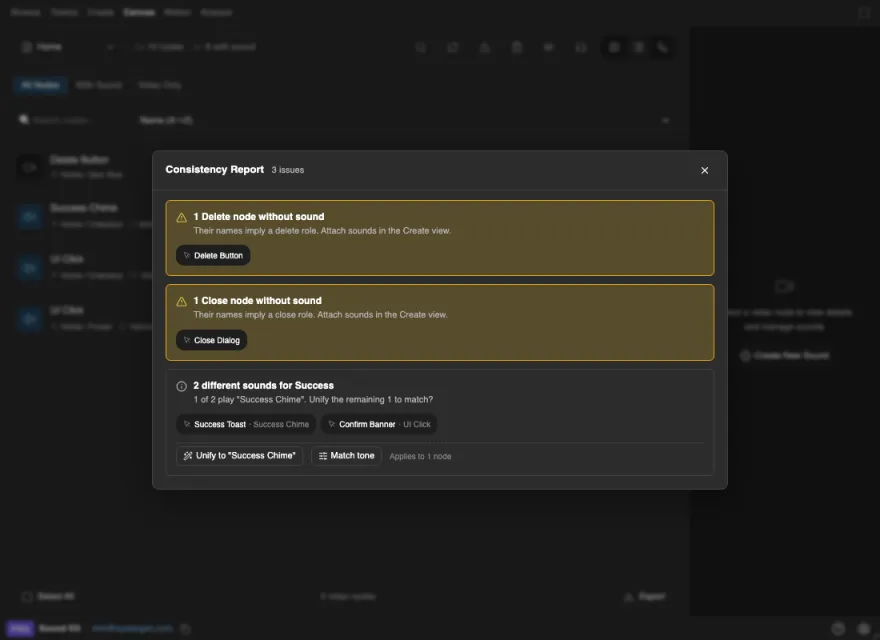
Individual sounds being good does not make a sound system. Scan the document and Sound Kit inventories every node carrying sound across every page, then the Consistency Report checks for the three failures that make a set feel accidental:
Every finding comes with a one-click fix, and where a sound is nearly right there is Match tone, which corrects an outlier in place with EQ and gain rather than replacing it.
Two views make gaps visible that a list cannot. The graph view lays the file out by structure and shades it by coverage, so an entire silent flow reads as an empty region. And Flow preview plays a run of screens in order with their sounds — the only way to catch the three notifications that fire on top of each other, because sounds are designed one at a time and experienced in sequence.
This is where most sound work dies. A folder of files and a Slack message is not a handoff; it leaves every real decision — when it fires, whether it interrupts, how loud it sits — to be re-invented by whoever implements the screen.
Sound Kit turns the work into artefacts engineering can build from:
$type / $value / $extensions structure as your colour and spacing tokens, with versioning and per-theme variants.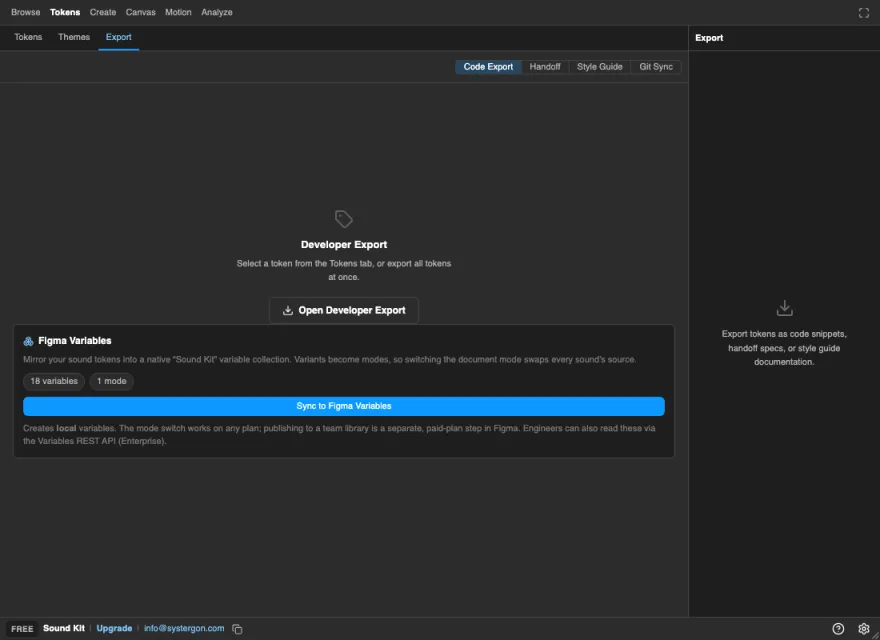
Browsing, searching and previewing are free, and so are your first few canvas sounds. Editing, AI generation, exports and premium libraries need Sound Kit Pro. AI generation additionally uses your provider key, so you pay OpenAI, ElevenLabs or Replicate directly for what you generate.
One Figma-specific caveat worth knowing before you plan around it: a sound that actually plays in a Figma prototype has to be carried by a video node, and video needs a paid Figma plan. Attaching a sound to a layer as a silent, exportable tag is free and works on any plan — it just will not make noise in the prototype. The help centre explains why.
Your audio also stays yours. Full-quality files go to storage you connect — GitHub, an S3-compatible bucket, Cloudflare R2, Drive or your own CDN. There is no Systergon bucket holding your sounds.
If you have never done this before, do the smallest useful version: pick one flow, give it three sounds — a primary action, a success, an error — normalise all three to one loudness target, save them as tokens, and export. That is a sound system. Everything above is how you grow it without it falling apart.
There are feature pages for every capability and a 75-article help centre if you want the detail.