Install Sound Kit — it’s free → See the Motion features
Figma shipped Motion, and designers who had been faking transitions with Smart Animate suddenly had a real timeline. Durations, delays, easing curves, per-property tracks — the vocabulary of motion design, native in the file.
What did not ship is the other half. Motion in a product is almost never silent: a sheet rises and whooshes, a toggle slides and clicks, a success state animates and chimes. The animation is now designed in Figma. The sound is still decided months later by whoever implements the screen.
Sound Kit’s Motion tab exists to close that gap — and the important design decision behind it is that it reads your real Motion data rather than asking you to describe it.
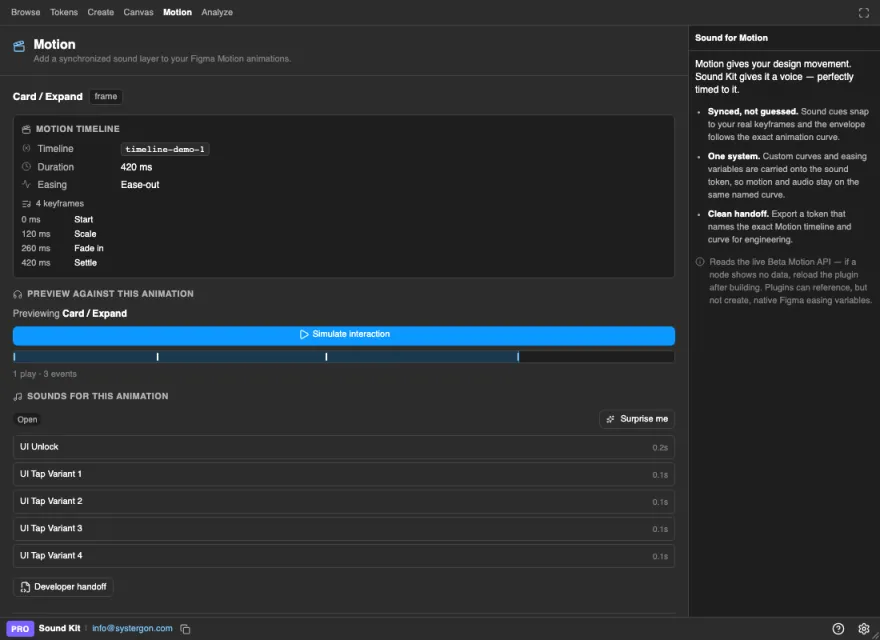
Select an animated layer and the Motion tab shows what Figma actually exposes. Two sources, and it is worth being precise about which is which:
timelines, keyframe tracks and applied animation styles. Where Figma surfaces these, the inspector shows the timeline duration, each keyframe’s offset and animated property, and an easing bound to a variable. Every read is guarded, because it is beta and undeclared.Either way, the values are the layer’s own — not an approximation, and not something you typed in a second time.
That matters more than it sounds. The usual failure in sound-for-motion is not picking a bad clip; it is picking a clip that is the wrong length. A 400 ms sheet with a 900 ms whoosh feels broken in a way people notice instantly and describe vaguely (“it feels laggy?”). Because the tab knows the animation is 400 ms, the sounds it suggests are ones that can actually live in 400 ms.
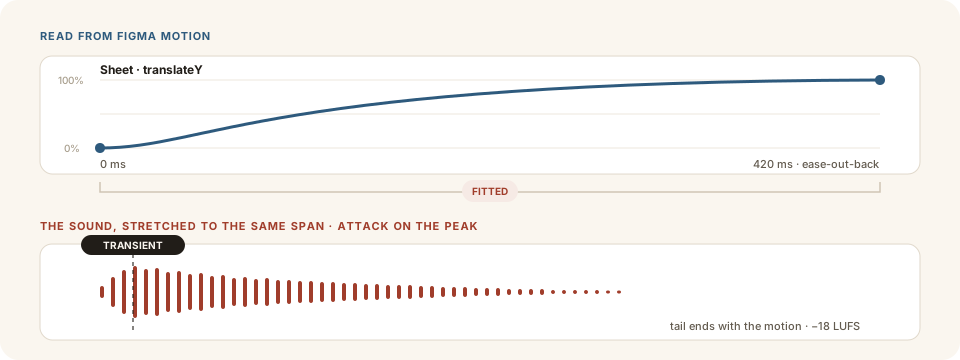
Suggestions get you close; Sync to animation gets you exact. It fits the clip to the real curve three ways at once:
That last one deserves a note on what “the moment the motion peaks” actually means, because it isn’t a number you type in. It is derived from the easing itself — the point of peak velocity, the steepest part of the curve. That gives the intuitive answer for every easing:
The editor shows both numbers side by side — “Attack at 92 ms”, “Motion peaks at 20 ms” — and one button closes the gap by padding the head with silence or trimming it. It will never cut into the attack itself, and it never touches the decay, because the tail is what makes a sound recognisable.
One ordering rule: stretch first, then align. Stretching afterwards rescales everything, including the silence you just added, and drags the transient straight back off the mark.
Preview them together, and if it is right, attach. The behaviour — when it fires, whether it interrupts, any delay — is recorded alongside the sound, so the decision survives into handoff instead of being re-litigated in code review.
One animated layer at a time is fine for the first three. It does not scale to a file with sixty transitions in it, and the ones that get missed are never the ones you are looking at.
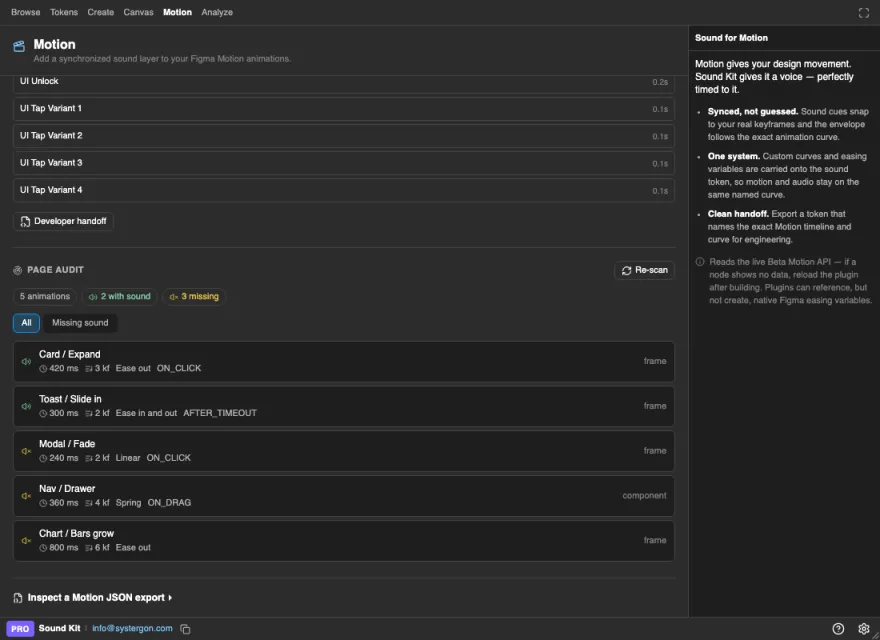
Run Scan page and the Motion tab lists every animated layer with its timing and whether it carries sound. Silent animations are almost always oversights rather than decisions — nobody deliberately chooses to have four of six modal transitions make noise. Click any row to select it on canvas and score it, then re-scan to confirm the page is covered.
This is the part that stops the work evaporating. A normal sound handoff says “play success.wav on the confirmation screen”, which leaves an engineer to guess when during a 420 ms animation it should fire.
The Motion export names the animation the sound belongs to and carries its timing, so the instruction is unambiguous: this clip, on this animation, starting at this offset, at this level, not interrupting. Combined with the tokens and code snippets, what engineering receives is a specification rather than a filename.
Motion data is read through Figma’s Beta Motion API. It is genuinely useful today — timing, easing and structure all come through — but it is beta, and if a layer you know is animated shows nothing, reload the plugin and reselect it. The help centre covers the details.
Also worth setting expectations on: hearing a sound inside a Figma prototype requires the sound to be carried by a video node, which needs a paid Figma plan. Everything else — inspecting motion, fitting sounds, auditing the page, exporting the handoff — works regardless. Here is why.
Pick the three transitions users hit most — usually a primary action, a sheet or modal, and a success state. Score those, sync each to its real timing, then run the page audit and see how many others you had not thought about. That list is normally longer than anyone expects, and it is the fastest way to make a prototype feel finished.