Install Motion Path — it’s free → See the product page
This update started with a post on the Figma forum. A designer testing Motion asked a simple, fair question: “The preview is always at 60fps… there’s no way to change it. I’d need to export the video at 30fps or 24fps every time I want to check the animation timing.”
They’re right. Figma’s native Motion preview runs at your display’s refresh rate, and film (24) or broadcast/social (30) cadence reads differently from a buttery 60. If you’re syncing to audio or delivering to a spec, “looks smooth in the panel” isn’t the answer you need — and exporting a video just to eyeball timing is a slow loop. We can’t change Figma’s native preview, but Motion Path has its own preview, so we fixed it there. Three additions.
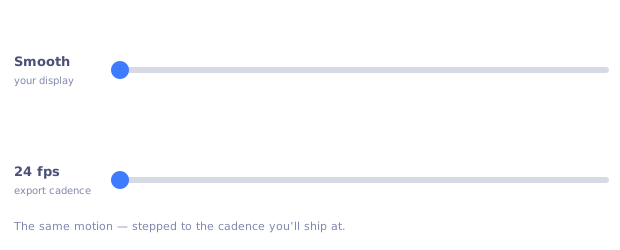
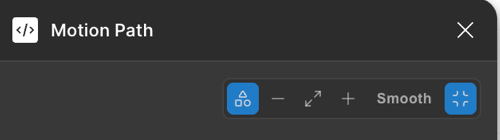
There’s a small playback-rate pill in the preview controls. Tap it to cycle Smooth → 24 → 30 → 60. Pick 24 and the preview steps exactly the way your exported 24fps video will — same motion, same duration, just quantized to the cadence you’re shipping at. The stutter you’d see in the render, you now see live.
It sits right in the preview controls, next to zoom and fit — here showing Smooth:
Nothing about what we write to the canvas changes: Motion Path still bakes real, native Figma Motion keyframes in true seconds. The frame rate is a preview lens, not a change to your animation.
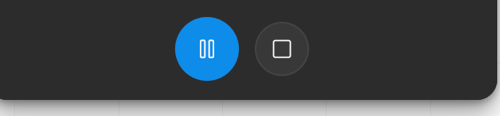
The preview panel is small — fine for a glance, not for scrutinising timing. So there’s now an expand button that opens the preview into a full-screen theater: the plugin window grows to fill your screen, the motion fills the space, and a transport bar appears at the bottom.
Hit Esc or the collapse button to drop straight back to the panel.
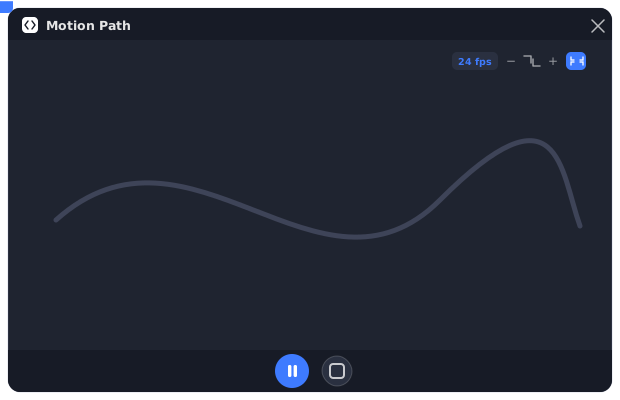
Here’s the transport bar itself, running in the plugin — a blue Play/Pause beside Stop:
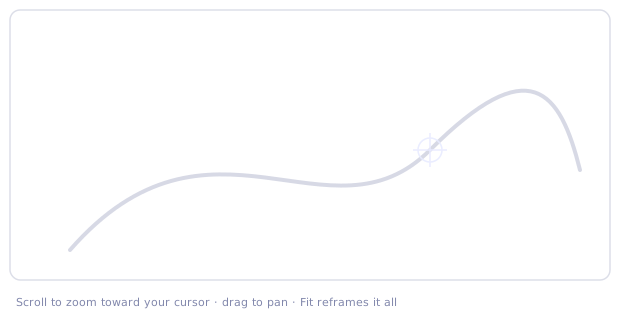
Whether it’s the panel or the theater, the preview now behaves like the Figma canvas: scroll to zoom toward your cursor, drag to pan. Frame a tight corner of a long path, follow a fast-moving object, or pull back to see the whole trajectory — the + / − / Fit buttons still work too.
Good motion is about timing, and timing is easiest to judge at the cadence you’ll deliver — up close, at full size, paused on the exact frame you’re unsure about. That used to mean an export-and-scrub loop. Now it’s in the preview.
And it came straight from a forum post. If you’ve got a rough edge in your workflow, tell us — this is exactly the kind of thing we love to fix. Update from the Community page and the new preview controls will be waiting.
Still writes real, native Figma Motion keyframes.