Motion Path is a Figma plugin that makes any layer follow a path — a line you draw, the outline of a shape, or a circle, wave, or spiral — and writes the result as real, native Figma Motion keyframes. This guide explains what the plugin does, shows every feature with a live example, and opens a library of 300+ ready-made path animations for Figma — spinners, draw-on reveals, kinetic typography, charts, and more.
Install Motion Path — it's free → See the product page
Figma added a real animation tool called Motion. Open the Motion → Animations panel on any layer and you can keyframe Position, Scale, Rotation, Size, and Opacity. Then you see one more option — Path — and it is greyed out. You cannot use it yet.
Motion Path is a plugin that gives you that missing piece today. It lets any layer follow a path: a line you draw, the edge of a shape, or a circle, wave, or spiral it makes for you. A dot can orbit a ring. An arrow can fly along a curve. A pin can drive down a road. A word can wrap around a circle.
The best part is what happens under the hood. Motion Path does not run its own little animation engine. It writes real, native Figma Motion keyframes onto your layer. So after you press Apply, the animation lives inside Figma like any other Motion animation. You can open the Motion panel and edit the keyframes by hand. You can inspect it in Dev Mode. You can export it to CSS, React, or JSON. Nothing is locked inside the plugin.
This article walks through what the plugin does, shows every feature with a small moving example, and then opens the full example library — more than 300 ready-made animations you can preview and apply in one click. Every picture in this post is a tiny animated SVG, and each one shows the same kind of motion the plugin writes into Figma.
Native Motion is great at moving a layer from point A to point B in a straight line, or scaling and fading it. But it has no idea about curves. There is no built-in way to say "follow this exact shape." That is the gap. Designers have wanted path motion for years — a marker that traces a route, a planet that circles a sun, a label that rides a wave.
Motion Path fills that gap by doing the math for you. It takes your path, measures it, and places keyframes evenly along it. The layer then moves through those keyframes, so it follows the shape closely and at a steady speed.
Real keyframes, not a fake preview. Many plugins show you a nice preview and then export a video or a GIF. Motion Path is different. It samples your path and writes native Position X / Y keyframe tracks (plus Rotation, Scale, Opacity, and Path-Trim when you turn them on) straight onto the layer's Motion timeline. What you preview is what Figma plays.
Steady speed, every time. The plugin measures the path by arc length — the real distance along the curve. That means the keyframes are spaced evenly, with one on every corner. Your object moves at a constant speed and does not slow down or bunch up on tight bends (unless you want it to — see the speed profile below).
Future-proof. Because the result is standard Figma Motion, it keeps working as Figma grows. Even if Figma turns on its own basic "Path" one day, your work is already native Motion data — there is nothing to move or convert.
That is the whole loop. Now let's look at what you can control.
You are never stuck drawing a shape by hand. Motion Path can read a path from three sources:
If the plugin picks the wrong layer as the path, use Set as path and Set as object to choose them yourself. And Load from selection reads an animation you already applied, so you can re-open and edit it.
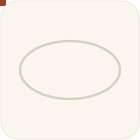
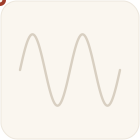
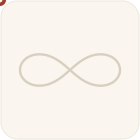
Turn on Rotate to path and the layer turns to face the direction it is moving. A paper plane points where it flies. An arrow aims down the curve. A little car steers around the bends.
Auto-flip keeps text and one-sided shapes the right way up when the path doubles back, so your object never ends up upside-down. You can also add a fixed rotation on top if you need a small tilt.
Two more tracks ride along with the motion:
Together they make things feel real. A product can shrink and fade as it flies into a cart. A dot can grow and glow as it moves. A "like" heart can pop up, grow, and fade away.
Turn on Draw path on and the plugin animates the stroke of the path itself, in sync with the moving object. There are two styles:
This is the effect behind signatures that write themselves, routes that draw across a map, and charts whose lines grow in as a dot leads the way.
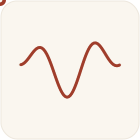
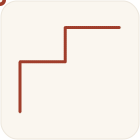
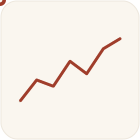
Direction decides how the path is travelled inside the animation's time:
Loops repeat the trip as many times as you like, and you can make the loops seamless so there is no jump. The Range slider animates only a part of the path (say from 20% to 80%), and a Normal offset shifts the whole path sideways.
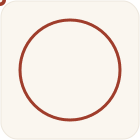
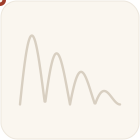
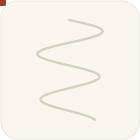
Easing is how the speed changes over time. Motion Path gives you the full Figma easing set: Hold, Linear, Ease in, Ease out, Ease in-and-out, the three Back overshoots, a Custom bezier you can drag, and the spring presets Gentle, Quick, Bouncy, and Slow — plus a Custom spring.
The smooth curves are applied as a time warp: the plugin keeps the sampled positions exact and only changes the timing, so the shape never distorts. Springs ride on the keyframes as Figma's own native easing, so their bounce and overshoot look real. You can even bind easing to a variable to reuse one motion feel across a file.
Select more than one layer and you get choreography:

Turn on Chain paths to send one object across several path pieces in a row — leg A → B → C on a single timeline. Add each path in the order you want it travelled. Choose Constant speed for one steady pace across the whole journey, or Equal per leg to give each path the same slice of time. This is how you build multi-step journeys and story sequences.
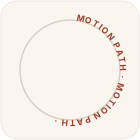
Native Motion treats a text layer as one box. Motion Path can go further and animate each letter. It splits your text into one layer per character (keeping the font and style), lays the letters out along the curve, and writes motion for each one. So a word can sweep onto a circle, a ring, a wave, or a spiral, one letter at a time.
By default everything moves at a steady speed. But real motion often slows into corners and speeds up on the straights. The Speed section lets you draw a velocity graph, or turn on Ease at corners to slow into every bend automatically. It only changes the timing of the keyframes — the positions stay exact — so the path shape is never bent out of place.
Give a setup a name and Save it, and it is stored on your device for next time. Turn on GitHub sync to back up your presets and share them with your team across files. And the Examples tab is a whole library of ready-made motion you can preview, tweak, and apply in one click — which brings us to the best part.
Paths are not only for spinners and decoration — they solve everyday interface problems too. Here are six real app screens, each with the motion Motion Path writes into Figma. In every scene a named Object layer rides a named Path layer, so the animation is easy to read and easy to edit. These are real, drag-into-Figma mockups: pick the object and the path, apply a recipe, and press play.
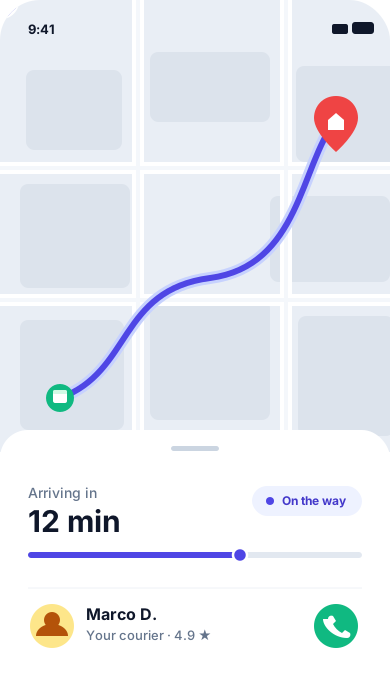

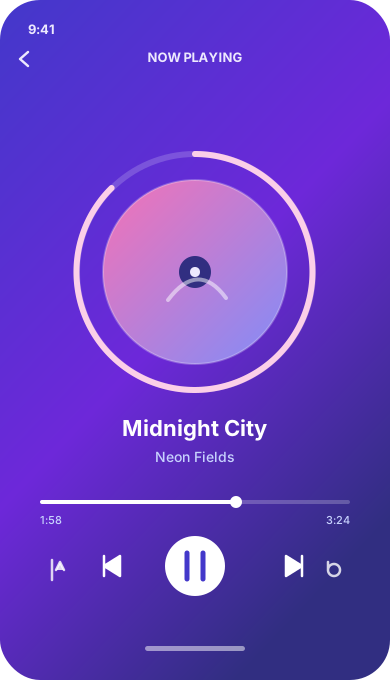

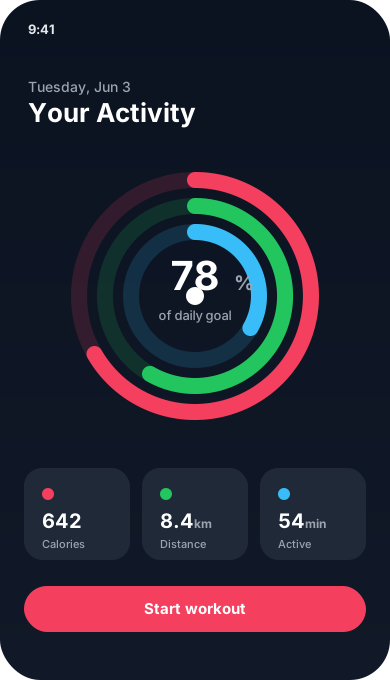
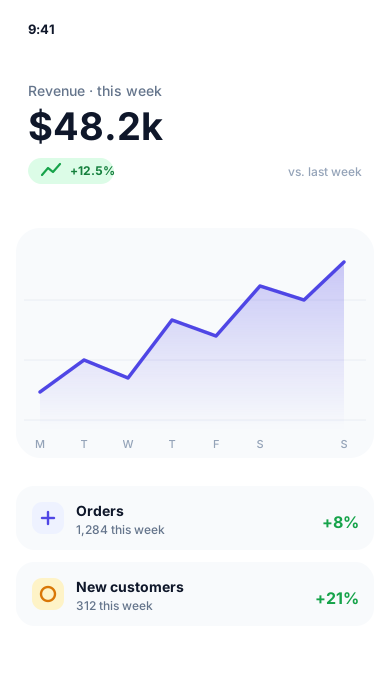
Every one of these is native Figma Motion, so it plays in prototypes, inspects in Dev Mode, and hands off to engineers as real code.
You do not have to start from a blank canvas. Motion Path ships with a large Examples library, sorted into clear categories. Each one is a real, editable setup: pick it, change the size or speed if you want, and apply. Below is every example, grouped by category, each shown as a small looping animation. Find one that fits, and you are one click from having it in your file — as native Figma Motion keyframes.
Busy states that never sit still — orbits, pulses, progress rings and chasing dots you can drop into any loading screen.
Orbit spinner |
Infinity loop |
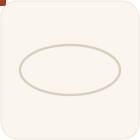
Ellipse orbit |
Pulse dot |
Progress ring |
 Comet spinner |
 Elastic progress |
 Typing dots |
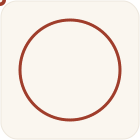 Spinner chase |
 Radar sweep |
 Skeleton shimmer |
 Indeterminate bar |
 Pulse ring |
 Swing loader |
 Fading orbit |
 Punch and glide |
 Loading dots ring |
 Ring echo pulses |
 Data pipeline |
The tiny movements that make an interface feel alive: shakes, slides, pops and toggles.
 Notification shake |
 Tab underline |
Like pop |
 Toggle slide |
 Ripple tap |
 Button press |
 Toast slide-in |
 Swipe to dismiss |
 Checkbox tick |
 Radio select |
 Tooltip pop |
 Menu reveal |
 Snackbar slide |
 Segmented slide |
 Badge count pop |
 Field focus line |
 Chip add |
 Glide to settle |
 Arrow nose on a guide |
 Ants marching |
Lines and shapes that draw themselves on, plus content that wipes and zooms into view.
Signature reveal |
 Checkmark draw |
Map route |
 Heartbeat line |
 Circle highlight |
 Arrow draw |
 Box outline reveal |
 Wipe reveal |
 Iris open |
 Blinds reveal |
 Fade-up reveal |
 Zoom-in reveal |
 Mask slide |
 List stagger-in |
Kinetic type — words on a ring, along a wave, spiralling in, or one letter at a time.
 Typewriter cursor |
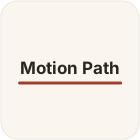 Underline swipe |
 Highlight sweep |
 Wavy baseline |
Bouncing letters |
Text around a circle |
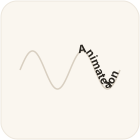 Wavy text sweep |
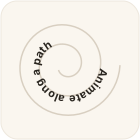 Spiral text |
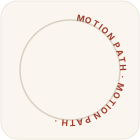 Type on a ring (fade) |
 Marquee ticker |
 Slide-up words |
 Glitch jitter |
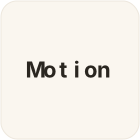 Letter drop |
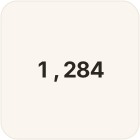 Number count-up |
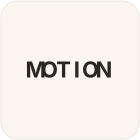 Split-flap board |
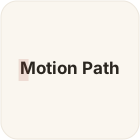 Text shine |
 Words fade in |
 Type & delete |
 Title scale-in |
 Character cascade |
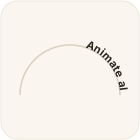 Headline onto an arch |
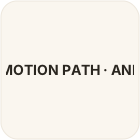 Straight-line ticker |
 Caption fade-up |
 Title rise |
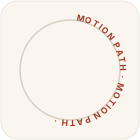 Badge text ring |
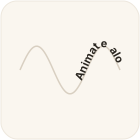 Wavy banner (fill) |
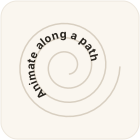 Type spirals in |
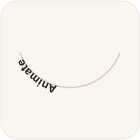 Curved subtitle |
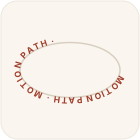 Credits crawl a curve |
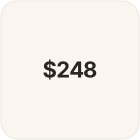 Price sweeps on |
Give a logo an entrance: draw its outline, build it monoline, stamp it, or let it breathe.
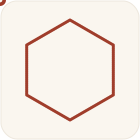 Draw logo mark |
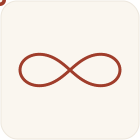 Monoline build |
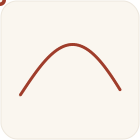 Swoosh |
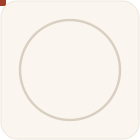 Emblem spin-up |
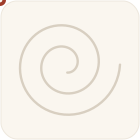 Spark burst |
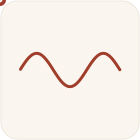 Ribbon unfurl |
 Badge stamp |
 Logo pop |
 Particle converge |
 Logo shimmer |
 Logo fade-up |
 Wordmark wipe |
 Logo drop |
 Logo breathe |
Make numbers move — line traces, sparklines, gauge sweeps and bars that climb.
Line graph trace |
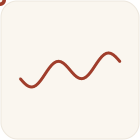 Sparkline |
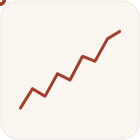 Trend up |
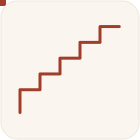 Bar climb |
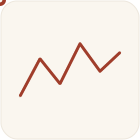 Scatter connect |
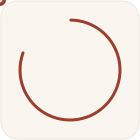 Donut progress |
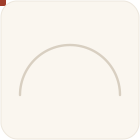 Gauge sweep |
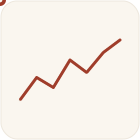 Area chart trace |
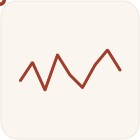 Candlestick scan |
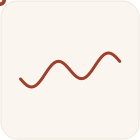 Live ticker |
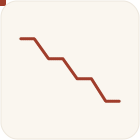 Funnel step-down |
 Bar grow |
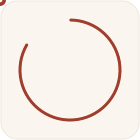 Pie sweep |
 Radar chart draw |
 Waterfall trace |
Small icon states with big personality: a ringing bell, a spinning refresh, a nudging chevron.
 Refresh spin |
 Bell ring |
 Download drop |
 Heart beat |
 Trash toss |
 Chevron nudge |
 Upload lift |
 Search scan |
 Settings gear |
 Arrow nudge |
 Location pin bob |
 Snap to rest |
 Clock hand sweep |
Screen-level motion — modals rising, drawers sliding, sheets snapping, pages turning.
 Modal rise |
 Drawer slide |
 Sheet snap |
 Carousel swipe |
 Page turn |
 FAB expand |
 Panel slide-in |
 Fade through |
 Banner drop |
 Accordion expand |
 Waypoint pause |
 Paper-plane nose |
 Flowing dashed border |
 Speed dash |
 Motion-blur swipe |
 Whoosh streak |
 Metro line |
 Onboarding tour |
On-screen hints that teach a gesture: tap, swipe, drag, pinch and pull-to-refresh.
 Tap hint |
 Swipe hint |
 Drag along path |
 Scroll nudge |
 Pull to refresh |
 Pinch zoom |
 Long press |
 Double tap |
 Swipe up hint |
 Drag & drop |
 Hesitate then dart |
 Pencil tip sketch |
Reactions worth double-tapping for — heart bursts, star ratings, thumbs up and floating emoji.
Heart burst |
 Star rating fill |
 Thumbs up |
 Emoji float |
 Share swoosh |
 Badge unlock |
 Story progress |
 Follow success |
 Reaction tray |
 Celebrate burst |
 Wand sparkles |
Shopping and money moments: add-to-cart throws, coin drops, price count-ups and card swipes.
Add to cart |
 Coin drop |
 Price count-up |
 Card swipe |
 Receipt unroll |
 Coin spin |
 Order confirmed |
 Contactless pay |
 Sale tag pop |
 Slide to pay |
 Heavy launch |
 Map pin on route |
 Sale badge corner |
 Conveyor belt |
 Delivery route |
 Parcel sorting |
Playful, punchy motion — power-ups, coin hops, projectile lobs and level-ups.
 Power-up float |
 Coin hop |
 Projectile lob |
 Star burst |
 Gem shine |
 Level up |
 Health refill |
 Combo pop |
 Spawn in |
 Dash |
 Corner brake |
 Rocket tip leads |
 Train on a track |
 Caterpillar crawl |
 Onion-skin ball |
 Rocket after-image |
 Relay hand-off |
 Board-game hop |
Sound made visible: equalizer bars, a spinning vinyl, a scanning waveform, a bobbing now-playing bar.
Equalizer bars |
 Vinyl spin |
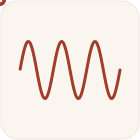 Waveform scan |
 Sound pulse |
 Now-playing bob |
 DJ scratch |
 Seek progress |
 Volume slide |
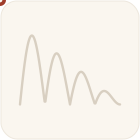 Beat bounce |
 Recording blink |
 Beat pulse |
Motion with weight — bounces, springs, pendulums, squash-and-stretch and elastic flings.
Bouncing ball |
 Pendulum |
 Spring drop |
 Ping-pong glide |
 Squash bounce |
 Overshoot slide |
 Confetti fall |
 Magnet snap |
 Elastic fling |
 Wrecking ball |
 Jelly settle |
 Swing in |
 Anticipation pop |
 Rubber band |
Slow, calm background motion: comets, bubbles, fireflies, drifting ribbons and aurora.
Comet |
 Floating bubble |
Falling leaf |
 Wobble ring |
 Parallax drift |
 Firefly wander |
 Ribbon wave |
 Aurora drift |
 Starfield drift |
 Lava-lamp blob |
 Particle rise |
 Breathing glow |
 Twinkle |
 Gentle sway |
 Spiral wind-up |
 Comet head streak |
 Drifting particles |
 Beads on a figure-eight |
 Treasure map |
Story-sized paths — rockets, paper planes, birds, butterflies and loop-the-loops.
Rocket launch |
 Paper plane |
Satellite orbit |
Spiral in |
Sine cruise |
Roller coaster |
 Bird flight |
 Balloon rise |
 Shooting star |
 Loop-the-loop |
 Butterfly flutter |
 Wave surf |
 Car drive |
 Fish swim |
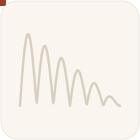 Walk cycle bob |
 Map pin drop |
 Speech-bubble tail pop |
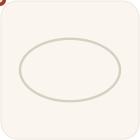 Planets on an orbit |
 Trailing cursor |
 Story beats |
The weather, animated: rain streaks, drifting snow, sun rays, ripples and meteors.
 Rain streak |
 Snow drift |
 Sun rays |
 Cloud drift |
 Water ripple |
 Fire flicker |
 Meteor |
 Sunrise |
 Wind sway |
 Lightning strike |
 Ocean wave |
 Gust whip |
 Raindrop tip trail |
 Comet dot trail |
 Comet tail |
 Shooting spark |
 Road trip |
Underline effects for links and buttons — swipes, strikes, draws and glitches, ready for hover.
 Metis — swipe in |
 Io — double swipe |
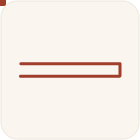 Thebe — swipe & thicken |
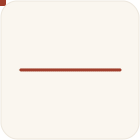 Leda — soft swipe |
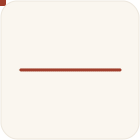 Ersa — strike-through |
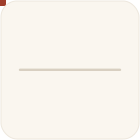 Elara — grow from centre |
 Dia — fade up |
 Kale — roll up |
 Carpo — line swap |
 Helike — glitch |
 Mneme — cover sweep |
 Herse — draw on |
 Arc — draw on |
 Carme — scribble |
 Eirene — squash |
 Iocaste — slide |
 Themisto — swipe from right |
 Pandia — box draw |
 Sinope — grow from centre |
 Aitne — strike draw |
The examples are fun on their own, but they map to everyday design work:
Because everything is native Motion, these are not throwaway mockups. They travel with the file, they play in prototypes, and they hand off cleanly to engineers.
This is worth repeating, because it is the quiet superpower of the plugin. The animation you make is native Figma Motion, so:
Design and code stay in sync. That is the whole point.
A few small tips that save time:
Does Motion Path write real Figma keyframes? Yes. It does not run a separate animation engine. It writes native Figma Motion keyframe tracks (Position, Rotation, Scale, Opacity, and Path-Trim) onto your layer, so you can edit them by hand, inspect them in Dev Mode, and export them to CSS, React, or JSON.
Can I animate text along a path in Figma? Yes. Motion Path can move a whole text layer along a path, or split a word into single letters and animate each one — so you can wrap text around a circle or a ring, run it along a wave, spiral it in, or type it on one letter at a time.
Do I have to draw a path first? No. You can draw a vector path with the pen, trace the outline of any shape, or let the plugin generate a circle, wave, or spiral with no path layer at all.
Will my work still make sense once Figma turns on its own "Path"? Yes. Because the output is standard native Figma Motion, there is nothing to convert. Your animations keep working as Figma's Motion tools grow.
How do I get a smooth, constant speed? Motion Path measures the path by arc length and spaces the keyframes evenly, so movement is steady by default. When you want easing, corner slow-downs, or a custom speed graph, you can add them without bending the path's shape.
Native Figma Motion gave us keyframes for position, scale, rotation, size, and opacity — but not for paths. Motion Path adds the missing piece and then goes well beyond it: rotate-to-path, draw-on strokes, scale and fade, springs, loops, chained journeys, kinetic type, multi-object choreography, and a library of 300+ ready-made animations to start from.
And it does all of this the right way — by writing real, native Motion keyframes you fully own. Preview one of the examples above, apply it, open the Motion panel, and you will see exactly what it made. From there, it is just Figma.
Ready to animate along a path? Motion Path is free on the Figma Community — install it, pick an example, and press play.
Install Motion Path — free → See the product page
Every animation in this article is a small SVG generated from the plugin's own example data, so what you see here is the same motion Motion Path writes into Figma.